


Last adaption: 06.2025
English-language phishing templates are already available, however.
License creation/license upgrade
License creation/license upgradeIn the reseller portal,
- you first create an Awareness Next license or
- perform an upgrade from Awareness Plus to Awareness Next
Video tutorial
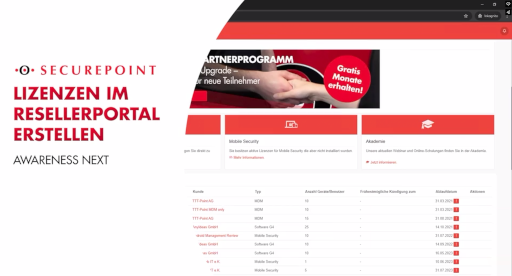
Step by step
- Log in to the reseller portal via the URL https://my.securepoint.de/ in the menu
- Step 1: Select customer
- Step 2: Under master data, click the button
- Step 3: Select the license tile for Awareness Next
- Step 4: Enter order details
- Select the monthly billing plan
- Enter the last name and first name of the license holder. Format: Last name, First name
- Enter the license holder (email). Click to enter the company's email address.
- Specify a unique order number under Your order no.
li class="list--element__alert list--element__hint">The order number should be chosen so that the license holder can uniquely identify it. - Click the button to continue
- Step 5: Optional booking of the add-on Darkweb-Scan. Select by clicking the checkbox ActivatenotemptyThe add-ons is subject to a fee and is billed based on usage. Details on the costs incurred can be found in the price list
- Step 6: Review the order summary for accuracy.
If correct: Accept the terms and conditions, the service description, and the VAT+ service card by clicking the checkbox .
To finalize the purchase, click
- Step 3: Deactivate active add-on Darkweb-Scan
Login
LoginSubsequently, log in to Awareness Next
Securepoint recommends following these steps in the given order for a smooth onboarding process.

As a reseller, log in to Awareness Next to get started. To do this, click and then .

Log in with your username and password.
If the entered details are correct, enter the One Time Password (OTP) in the next step if required, and click .
Next steps
Next steps- as a step-by-step guide or as
- tutorial videos in the Help Center of the Awareness Next portal under
Menu Help Center
Reseller master data
Reseller master dataMenu
Start by entering the reseller master data.
If a reseller is logged in as a reseller in the portal and wants to configure training invitation settings for themselves (and not for an end customer), they can do so under [ https://wiki.securepoint.de/index.php?uselang=en&title=AWN/Stammdaten_Kunde Customer Master Data]
The following settings are possible there:
- Desired type of training: Default Training
- All options regarding reminder delivery: Training Reminder Days
Master Data
| Caption | Value | Description | Datei:AWN Reseller Stammdaten-en.png Reseller Master Data
|
|---|---|---|---|
| Salutation | - | Selection of salutation | |
| First Name | Lisa | Enter the first name of the email recipient | |
| Last Name | Synchronized by Securepoint and cannot be edited | ||
| Company | TTT-Point AG | ||
| Street | Bleckeder Landstraße 28 | ||
| Postal Code | 21337 | ||
| City | Lüneburg | ||
| Phone | 01234-567890 | Up to 2 phone numbers can be entered | |
| Phone 2 | 09876-54321 | ||
| frank@ttt-point.de | Enter the recipient's email address | ||
| Logo | Upload the reseller logo. Primarily used in reports and certificates (optional). It is also displayed in the top left during reseller login. | Datei:AWN Reseller Stammdaten2-en.png Additional reseller master data
| |
| Imprint | ttt-point.de/impressum | Link to the legal notice (used in the customer and training portals). If no link is provided, the default notice https://www.securepoint.de/impressum is displayed | |
| Privacy Policy | ttt-point.de/datenschutz | Link to the privacy policy (used in the customer and training portals). If no link is provided, the default privacy policy https://www.securepoint.de/datenschutz is used | |
| Default Training | Outside the Workplace (Explained in Person)
|
Specifies which training an employee should be invited to by default after a successful phishing attempt if not specified in the campaign template | |
| Training Certificate Template | Use default template | Select a training certificate template. The default template can also be used default template . Custom templates can be created and uploaded using a downloadable template via the Custom button. |
Datei:AWN Schulung Zertifikat Vorlagen-en.png Select a training certificate template or integrate a custom template
|
| Homepage | Dashboard-Reseller or Dashboard-Kunde |
The homepage displayed after login | Datei:AWN Reseller Stammdaten3-en.png Further settings options
|
| Campaign Report Delivery | 1 day (default) 1 hour 3 hours 1 day 3 days 1 week |
Determines when the automatic report of a session is sent to recipients after the last email of a session is dispatched | |
| Campaign Abort Rate | 50% (default) | Percentage of failed phishing email delivery attempts at which a phishing campaign is automatically aborted.
The rate can be adjusted in 5% increments from 0% to 100% | |
| Delivery Times | Consider delivery times | The delivery times for phishing emails sent to employees (default setting for all phishing campaigns). Delivery times can be customized as needed. Regional holidays by federal state can be excluded using the Consider holidays button. Niedersachsen Additional days can also be excluded via the calendar function. Special delivery times can alternatively be completely disabled |
Datei:AWN Versandzeiten-en.png Individual Settings for Delivery Times
|
| Saves the reseller's master data | |||
Recipient | |||
| Caption | Value | Description | |
Set recipients on the reseller side for email notifications. Notifications can be sent for
Clicking the button opens a new dialog where you can configure the details | |||
| frank | All Fields Salutation First Name Last Name Actions | ||
| Salutation | - | Selection of salutation | |
| First Name | Martin | Enter the first name | |
| Last Name | Lanig | Enter the last name | |
| martin@ttt-point.de | Enter the recipient's email address | ||
| Notifications | |||
| All email notifications are disabled by default. They are selectively enabled via the toggle button
When enabled, detailed settings can often be configured. | |||
| Phishing | Send a notification when a manual session or an interval in an automated campaign has ended (e.g., weekly or monthly) | Datei:AWN Reseller Empfänger anlegen-en.png Create Recipient for Notifications
| |
| Darkweb | Send a notification upon completion of a dark web scan. Additional configuration options are available | ||
| Send a notification for failed phishing email deliveries | Send an automatic notification if a campaign is aborted due to too many failed delivery attempts | ||
| Campaign Abort | Send an automatic notification when a campaign is aborted due to too many failed delivery attempts | ||
| Microsoft User Synchronization | Send a notification when employee contacts are updated via Microsoft user synchronization (new contact added or existing contact deleted) | ||
Text Templates (Reseller) | |||
| Edit text templates | Datei:AWN Text-Vorlagen Reseller-en.png Overview of text templates
| ||
| Delete text templates | |||
|
| |||
| Text templates can be edited in an editor. Finally, click | Datei:AWN Text-Vorlagen Reseller editieren-en.png Overview of text templates
| ||
Microsoft Credentials | |||
| Simulated phishing attacks can also be launched via MS Teams. To do this, you need to link one Microsoft account to Awareness Next. Additional accounts are also possible.
notempty
Internal and external attacks with any username must be configured by a Teams administrator!! Additional Teams administrator accounts can also be set up as needed. Teams phishing messages can then be sent to both customers and the reseller itself. The attacks are always marked as [External]. | |||
| Caption | Value | Description | |
| Name | TTT Point MS | The specified name is displayed in templates for selection | |
| Username | ttt-point | Username for the Microsoft account used to send Teams messages | |
| Password | ••••••••••••••••••• | Enter the password for the Microsoft account | |
| Sharepoint | tttpointgmbh | The SharePoint domain name of the company in the M365 account. Enter this domain name in the field. To find the SharePoint domain name, log in with the M365 account, then open the SharePoint app. The domain of the following page displays the SharePoint domain name, e.g., tttpointag.sharepoint.com Only the domain name is required in this field, e.g., tttpointag | |
Technical limitations | |||
|
| |||
Reseller dashboard
Reseller dashboardMenu
After logging in, resellers see a dashboard with an overview of their customers' phishing campaigns.
The reseller dashboard displays an overview of all customers.
To view the details, click on the name of the respective customer.
Meaning of a red icon: A new event has occurred for the customer (here: New discovery on the dark web).
The detailed overview shows the current status of
- phishing campaigns
- dark web scan
- external vulnerability scan
- training portal, and
- internal vulnerability scan
They can be edited under Actions using the pencil icon .
When customers log in to Awareness Next, they see the customer dashboard.
Customer dashboard
Customer dashboardMenu Dashboard
After logging in, customers see their own dashboard with the most important key figures for their ongoing phishing campaigns.
The customer dashboard provides an overview of
- ongoing phishing campaigns, and
- completed dark web scans
| Button | Description | [[Datei: ]] The dashboard in the customer view
|
|---|---|---|
| Access the detailed overview of the current phishing campaigns | ||
| Opens the overview of ongoing dark web scans | ||
| All certificates |
Clicking takes you to a separate export page where you can download all certificates for completed employee training as PDFs. The number of available certificates is displayed. Start the download with |
[[Datei: ]] Download training certificates
|
| The certificates are generated and can then be saved locally | [[Datei: ]] The certificates are being generated
| |
| The zip archive contains all certificates as PDF files | [[Datei: ]] Awareness Next training certificate
| |
Customer master data
Customer master dataMenu
Now, enter the customer master data.
Master Data
| Caption | Value | Description | Datei:AWN Kunde Stammdaten-en.png |
|---|---|---|---|
| TTT-Point AG | Synchronized by Securepoint and therefore cannot be edited | ||
| Salutation | - | Select Salutation | |
| First Name | Lisa | Optional: Enter the first name | |
| Last Name | Synchronized by Securepoint and therefore cannot be edited | ||
| Bleckeder Landstraße 28 | |||
| 21337 | |||
| Lüneburg | |||
| Phone | 01234-567890 | Entry of up to 2 phone numbers possible | |
| Phone 2 | 09876-54321 | ||
| lisa@ttt-point.de | |||
| tttpoint.de | Datei:AWN Kunde Stammdaten2-en.png | ||
| Settings | |||
| Datei:AWN Versandzeiten-en.png | |||
| |
Datei:AWN Kunde Stammdaten3-en.png | ||
| |
|||
| Datei:AWN Schulung Zertifikat Vorlagen-en.png | |||
Settings | |||
|
|
Datei:AWN Text-Vorlagen Kunde editieren-en.png | ||
|
| |||
| Caption | Value | Description | |
|
| |||
|
| |||
| Datei:AWN Alle Platzhalter anzeigen-en.png | |||
|
| |||
| Datei:AWN Listenansicht Platzhalter-en.png | |||
Recipient | |||
| Caption | Value | Description | |
| Salutation | |
Select Salutation | |
| First Name | |||
| Phishing | Datei:AWN Empfänger anlegen-en.png | ||
| Darkweb | |||
|
| |||
| Datei:AWN Empfänger Listenansicht-en.png | |||
IP and domain allowlisting
IP and domain allowlistingIP and domain allowlisting is required to ensure that simulated phishing emails reach the recipients.
The smooth delivery of simulated phishing emails from Awareness Next is only possible with active allowlisting. Otherwise, the emails will be filtered out by mail filters.
For more information, see the corresponding article on E-Mail-Audit
Contact book groups
Contact book groupsMenu Mitarbeiterkontakte
It is useful to organize employees into groups. This allows you to run individual phishing campaigns for specific departments, for example.
You can
- manually create groups for employees
- edit these groups later or
- delete them
Create new group
| Value | Labeling | [[Datei: ]] Manage contact book groups
| |
|---|---|---|---|
| Create new group. This opens a new dialog box. notempty
Alternatively, groups can also be created automatically when importieren importing employee contacts. During M365 synchronization, groups that already exist in Awareness Next are imported automatically. | |||
Group | |||
| Labeling | Value | Labeling | [[Datei: ]] Create a group for employees
|
| Name | Marketing | Name for employee group | |
| Save a group | |||
| Save a group and create another | |||
list view | |||
| Labeling | Value | Labeling |  Overview of existing groups
|
| Name | Sales | Name of the respective group | |
| Action | | Edit a group | |
| | Delete a group | ||
| Create another group | |||
| Show search parameters with a click | |||
| Name | test company | Entering a group name to search for | [[Datei: ]] Successful search for the deleted group
|
| Actions | Hide deleted entries | Hide deleted entries from search results | |
| Show deleted entries | Show deleted entries in search results | ||
| Start search with a click | |||
| Delete the entered search parameters | |||
| Hide search window again | |||
Import employees
Import employeesMenu Mitarbeiterkontakte
For a large number of employees, importing is useful. However, you can also create them manually in the Awareness Next interface.
Template
You can create employee contacts by
- creating them manually,
- synchronizing with M365, or
- directly importing employee contacts using an Excel template.
| Value | Labeling | [[Datei: ]] Create employee contacts according to this schema
|
|---|---|---|
| First, download the Excel template for the employee import | ||
Import ContactsImport Contacts | ||
| Then, insert the contacts exactly according to the provided schema | [[Datei: ]] Employees inserted according to the template
| |
|
[[Datei: ]] Upload employee contacts.
| |
| Now, upload the Excel file. | ||
| Access via menu | ||
| If the import is successful, all employees will now be displayed correctly in the employee contacts.
|
[[Datei: ]] The import of employee data was successful.
| |
Undo ImportUndo Import | ||
| You can undo an import by clicking the button. A new dialog opens. |
[[Datei: ]] Undo the import of employee contacts.
| |
| Finalize the undo process by clicking the button | ||
notempty
Please note: You can only undo an import immediately. This option is only available as long as the page is open. | ||
| The import of employee contacts has been undone. | [[Datei: ]] Success message: The import of employee contacts has been undone.
| |
Phishing campaigns
Phishing campaignsMenu Phishing-Kampagnen
You can
- create and configure automatic phishing campaigns or
- set up phishing campaigns manually
…


Trainings
TrainingsMenu Schulungen
Selection of training measures for customers
The menu provides an overview of Awareness Next trainings.
You can
- activate and deactivate them individually
- test the trainings yourself, and
- search for specific trainings and learning methods
Additionally, you can
| Labeling | Labeling | [[Datei: ]] Employee trainings using videos and quizzes that test what has been learned
|
|---|---|---|
| Search... Compliance |
Search for specific trainings by category (e.g., Compliance) or learning method | |
| Use |
By default, all trainings are used. If you deactivate the checkbox , all trainings are deselected . They can now be selectively reactivated . | |
By clicking on
|
[[Datei: ]] Sort learning content by category (here: TRAINING) or training type (here: LEARNING METHOD)
| |
| Test | If you click on Test, a preview of the training measures opens. They include
|
[[Datei: ]] Training measure for employees
|
Darkweb-Scan
Darkweb-ScanMenu Darkwebscan
The dark web scan searches the dark web for employee data.
|
| |||
| Datei:AWN Darkweb-Scan-Übersicht-en.png | |||
|
| |||
|
| |||
| Datei:AWN Darkweb-Scan-Anlegen-en.png | |||
| |
|||
|
| |||
| Datei:AWN Darkweb-Scan-Allgemeine Einstellungen-en.png | |||
| |
|||
|
| |||
| Datei:AWN Darkweb-Scan-Mitarbeiterkontakte Verwalten-en.png | |||
| IT (3) Marketing (1) | Datei:AWN Darkweb-Scan-Gruppen-en.png | ||
| IT Frank Gruber Lara Wuttke Ramona Haupt | Datei:AWN Darkweb-Scan-Einzelne Kontakte-en.png | ||
| Datei:AWN Darkwebscan Ergebnis-en.png | |||
| Nach Aktivierung werden nur Scan-Ergebnisse angezeigt, bei denen der betroffene Mitarbeiter das jeweilige Datenleck behoben hat und beispielsweise seine Adobe-Zugangsdaten geändert hat. In diesem Fall stellt man den jeweiligen Eintrag auf ERLEDIGT | |||
| Datei:AWN Darkweb-Scan-Neue Ergebnisse-en.png | |||
| Datei:AWN Darkweb-Scan-Erledigt-en.png | |||
| Lara Wuttke | |||
| lara@ttt-point.de | |||
| 5 | |||
| Datei:AWN DWS Historie-en.png | |||
| Datei:AWN Darkweb-Scan-Übersicht 2-en.png | |||
|
| |||


