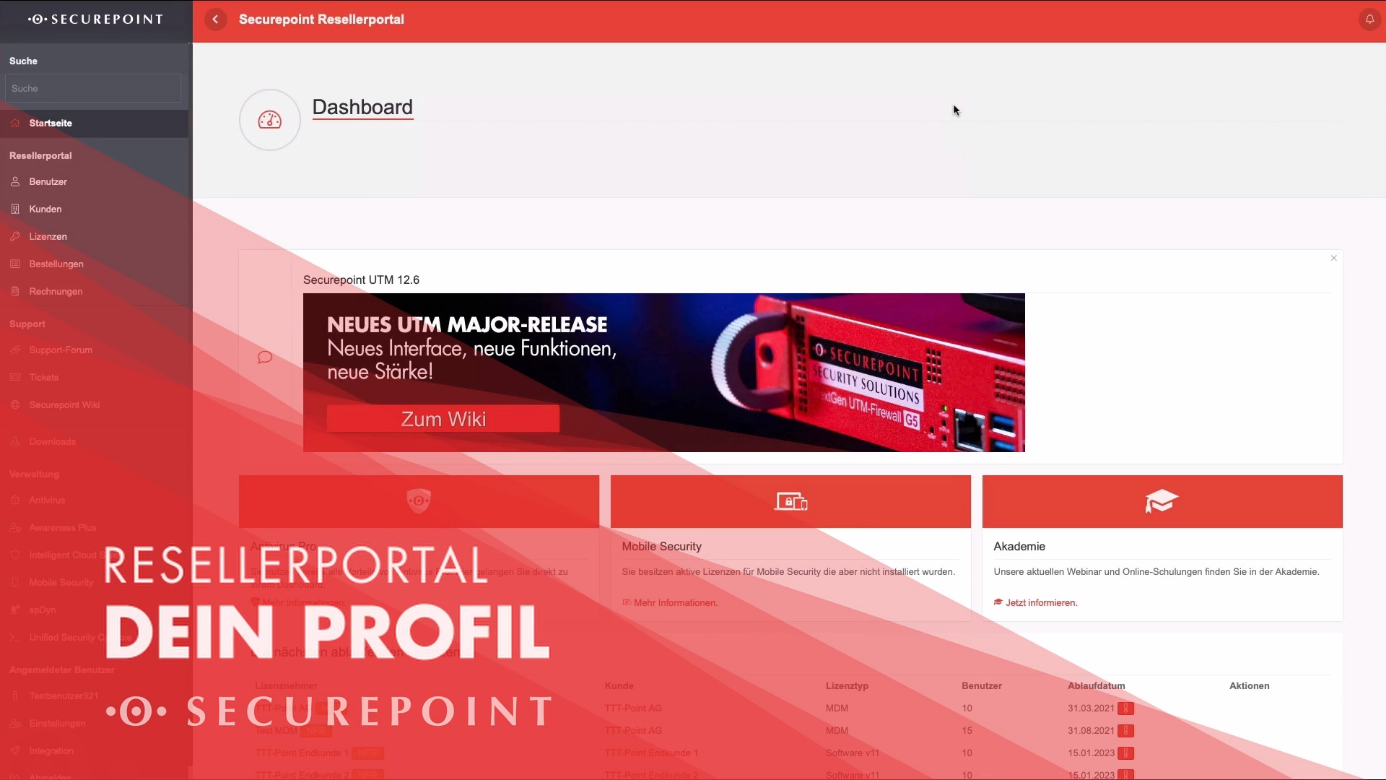



New article: 01.2025
View user profile
You can access your own user profile under .
Display the user information:
| Caption | Description |  View user profile
|
|---|---|---|
| User name: | Once created, the user name can no longer be changed | |
| Name: | Full Name | |
| Email: | Assigned email address | |
| Email (invoices): | Email address to which invoices are sent | |
| Distributor: | Securepoint | |
| Assigned company: | Company to which this user account is assigned | |
| Customer number: | Customer number of the assigned company assigned by Securepoint | |
| Role: | Permission settings | |
| Notification settings: | Shows when a notification is sent when a license expires. | |
| Subscribed newsletter: | Shows which newsletters are subscribed. With link to the newsletter administration | |
Edit user information
| The user information can be edited using the button. | |||
| Caption | Value | Description |  Edit user information
|
|---|---|---|---|
| User name | homerS | The username of the current user (not changeable) | |
| email address | homer@ttt-point.de | User's email address for general notifications such as expiring licenses | |
| Salutation | Herr | Desired Salutation | |
| First name | Homer | First name of the user | |
| Name | Simpson | First name of the user | |
| Notification Settings: | 4 Notify weeks before expiration 6 Notify weeks before expiration 8 Notify weeks before expiration 12 Notify weeks before expiration |
Activation of notifications about expiring licenses via email | |
| Roles: | Roles of the user | ||
| Email (invoices) | homer@ttt-point.de | Email address to which invoices are sent | |
| Download the invoice PDF | Anmeldung im RSP erforderlich | Specifies how invoice PDFs are delivered | |
| New password | Change user password | ||
| New password (confirmation) | |||
Actions
The following actions are also available in the user profile:
- Evaluations
- Manage Multi-Factor Authentication Only displayed for logged-in users. Available only for resellers.
- Transfer Primary User Only available for primary users
Evaluations
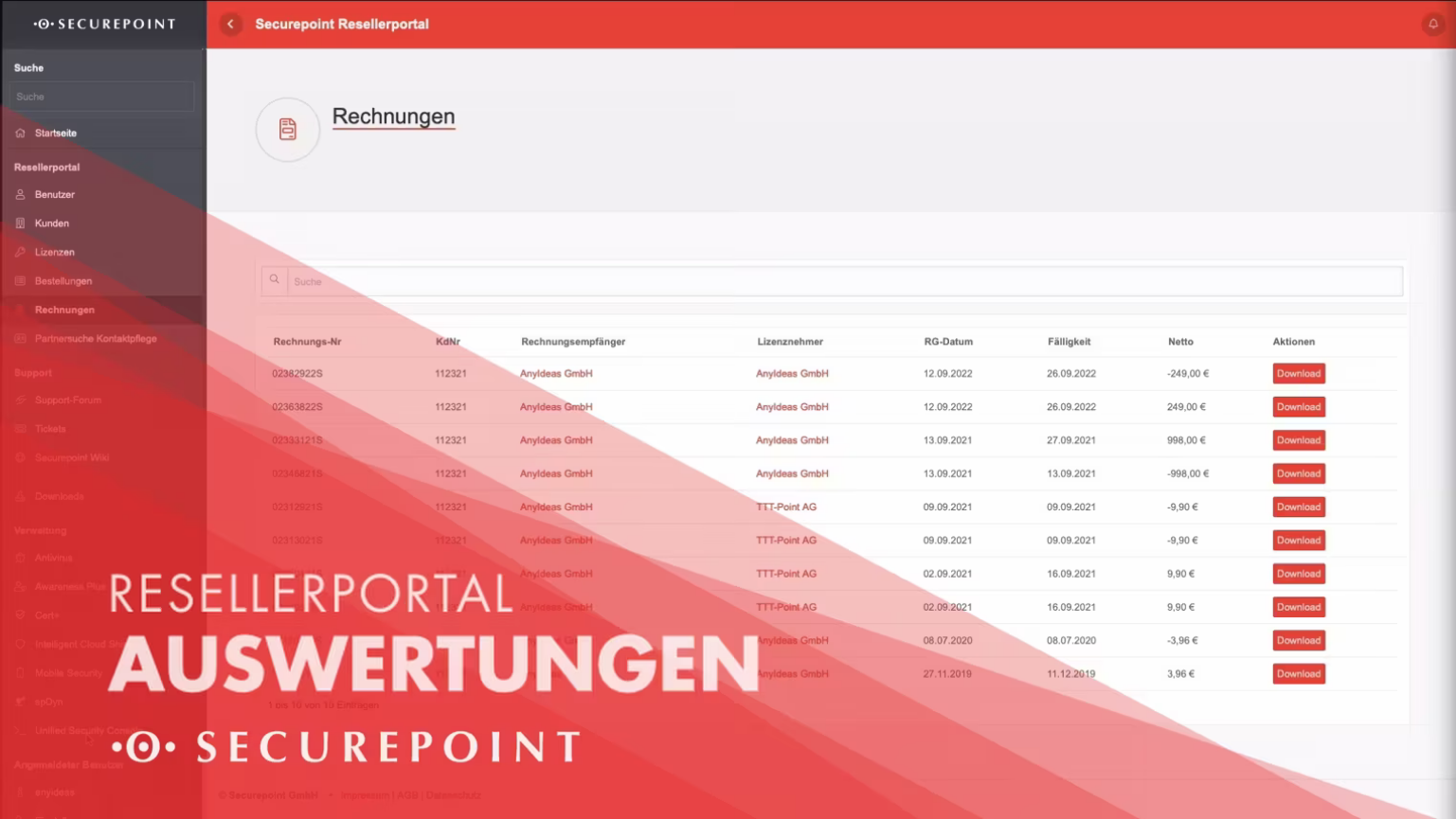

The device overviews for MSP contracts can be downloaded here in Excel spreadsheet format. The following data is included:
- Date - Date on which consumption was measured
- Reseller - Name of the reseller
- Customer - Name of the licensee
- Customer-specific number - Own "customer number" that the reseller can enter
- Product - "Securepoint AV", "Mobile Security", "Black Dwarf UTM as a Service", etc.
- License key - For AV, the license key; otherwise, this is blank
- Number of billable units - The number of billable units measured on $Date
- Number of free units - The number of free billable units measured on $Date
- Description - For backward compatibility only. Contains some of the other report information in one cell
- Max. free units until - If a term transfer is specified in the license: Until when this term transfer is valid.
- Max. free units - If a term transfer is entered in the license: What is the maximum number of units that can be used free of charge until the end of the term transfer
- License Name
- Hardware Serial Number - If applicable, the hardware serial number
- Order Number - If applicable, the order number
- Licensee
- Licensee (Customer ID)
- Licensee (Address)
- Licensee (Zip Code)
- Licensee (City)
- Licensee (Country)
- License Issue Date - The start date of the license term
- License Expires Date - If canceled, the end date of the license term
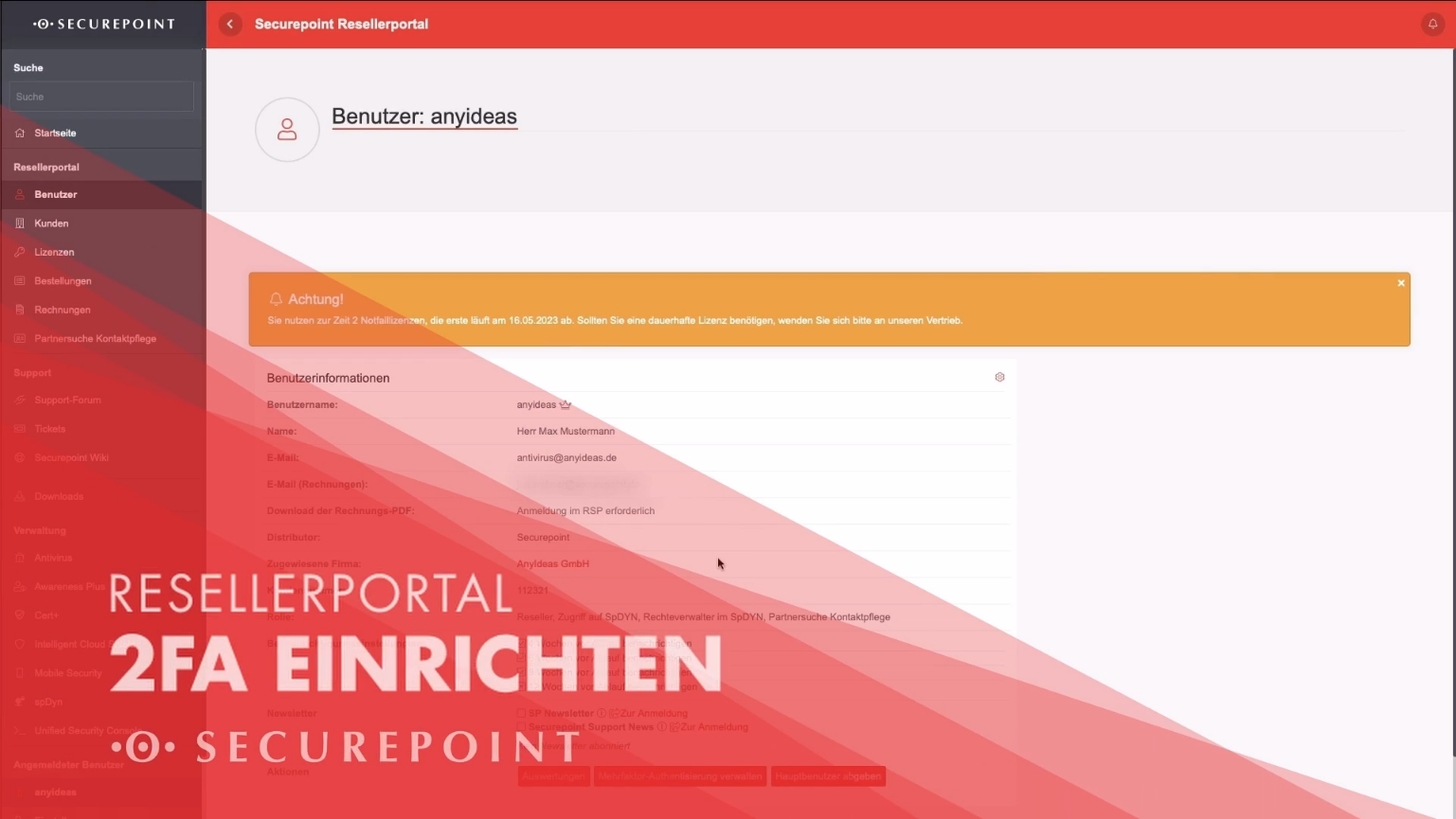
Two-factor authentication
|
|
 | |
Fallback solution | ||
notempty
In order to use multi-factor authentication, a mobile / cell phone number or a TAN list is required as fallback solution. | ||
notempty The SMS is used exclusively for recovery in the event of loss. The SMS is not sufficient for two-factor authentication! | ||
Mobile number | ||
| If necessary, one-time codes are sent via SMS to this number. notempty There are a maximum of three attempts in a row A new trial is added per week until the maximum number is reached again. | ||
| DE-49 Your mobile number | Enter the mobile number with country code | |
| Verify | Checks the number by sending a sms.
 Continue with OK  Enter the password. Continue with OK | |
| Code Save | Enter the code that was sent by sms and save. For security reasons the password of the current user must be entered again! A confirmation will be sent. Mobile number Your mobile number has been saved Success Your password has been verified | |
| A registered and verified mobile number can be removed with »Delete«. | ||
TAN List | ||
| Generate TAN list | Creates an individual TAN list for printing in a separate window.
| |
| Tan list generated | It shows how many tans are still available on the list. or if the procedure is not enabled. | |
| Deletes an existing TAN list and thus deactivates this procedure. A prompt appears for security reasons: Do you really want to delete your TAN list? OK and password query of the current user. {ic | ||
| If a fallback solution is to be used during login, you can click the {spc | ||
Depending on the configuration, you can now
| ||
WebAuthn | ||
| By means of the Webauthn method hardware tokens, such as eg. USB security keys, are registered as an additional factor. This is an extremely convenient way of multi-factor authentication - a maximum of one button on the stick must be pressed. The browser used must support WebAuthn, this applies to most current browsers. } Internet Explorer is not current browser!
| ||
| Active when a WebAuthn token is stored | ||
| Manage WebAuthn | ||
| Action | Description |  |
|---|---|---|
| Add | {Register a new key. An enabled WebAuthn token is automatically detected and added. | |
| The name of a key can be changed | ||
| Identify | When the token is activated, the key is marked | |
| Login with WebAuthn in the reseller portal | ||
| Log in | Enter |
  
|
Please insert the security key and Log in |
An additional prompt for the hardware token (security key) appears. Continue even if hardware token is missing. If a hardware token has been recognized, you get to the start page of the selected portal | |
| Show options | If there is no access to the hardware token, a fallback solution can now be selected.
| |
TOTP | ||
| With the TOTP procedure (time based onetime password), one-time passwords can be generated on the smartphone with corresponding apps, for example. The generated passwords are only valid for a very short period of time and must be entered manually in the appropriate field. | ||
| TOTP | ||
| Step 1 | For initial configuration:
|
Understood, continue. |
If OTP has already been configured before, it must be deactivated first.
Code 1 123456 Code 2 654321 |
Deactivate OTP login | |
| Step 2 |
Current password |
Create QR Code |
| Step 3 |
| |
| Last step |
Code 1 123456 Code 2 654321 |
Activate OTP Login |
If the operation successful was the user automatically logged out and a message appears: Your account has been successfully activated for the use of OTP passwords. Please log in again now. You will be asked for an OTP password. Press OK to go to the login screen. If the codes were not entered correctly a message will appear: Your account could not be activated for the use of OTP passwords. Please try again later. | ||
Drop primary user
You can drop your role as the primary user of the company xyz here. The primary user can not be changed by other users of the company.