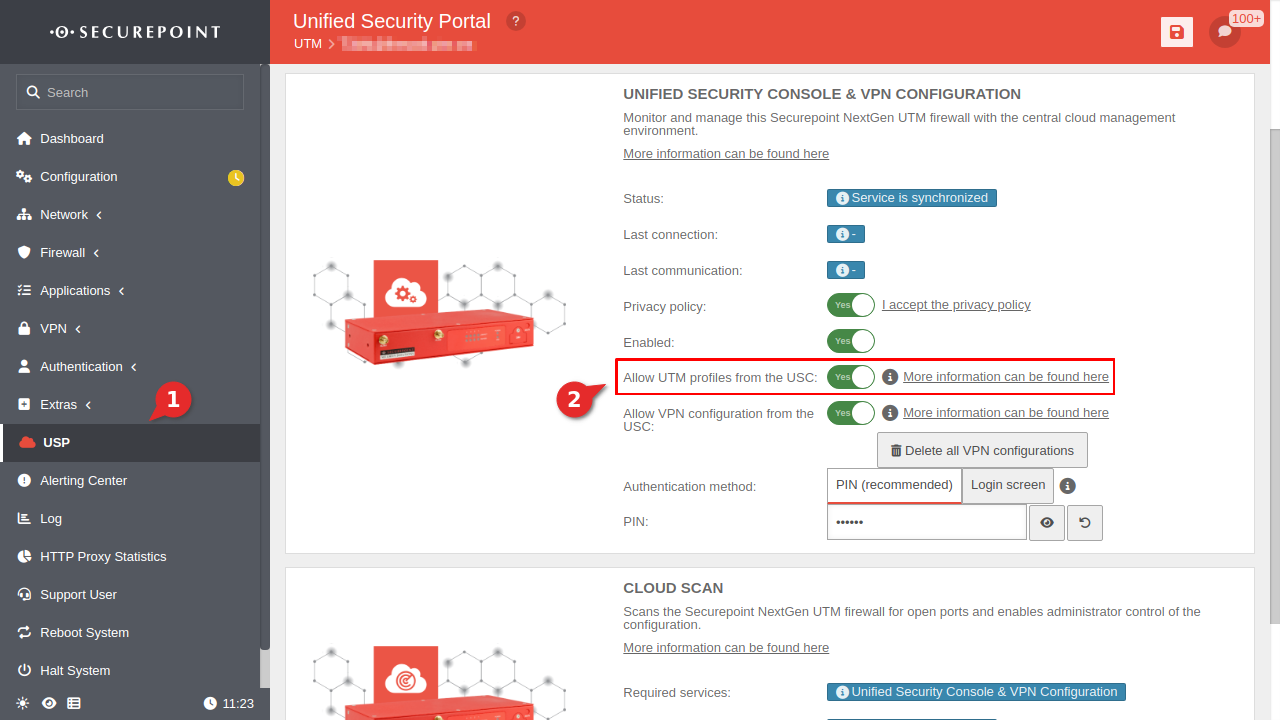
On the UTM the option Apply USC profiles must be active Yes under USC for Unified Security Console & VPN Configuration so that USC profiles can be applied to UTMs.
From UTM version 12.6.2
In the UTM menu USP 1 activate the option Allow UTM profiles from the USC2
Profiles allow several UTMs to assign specific events. Initially, there is the option to perform an automatic update when a new version is available on the UTM.
The higher the number, the higher the priority. This is only used if a device is assigned to multiple profiles.
Es wird jeweils nur das Profil mit der höchsten Priorität angewendet!
Cross-tenant profile
Remains disabled for local profiles
UTMs
Add UTMs
Available UTMs can be selected in the clickbox
When assigning a primary cluster UTM
notempty
(available from portal version 2.1)
, manual synchronization of the other cluster UTMs is required to avoid inconsistencies. Only the primary UTM of a cluster should be assigned here.
notempty
On UTMs from version 14.1.0, the permission to set certain values can be revoked via the profiles. In this case, settings from the profiles are not implemented on the UTM.
Tags
Add tags
The profile is assigned to all UTMs that have at least one of these tags
notempty
On UTMs from version 14.1.0, the permission to set certain values can be revoked via the profiles. In this case, settings from the profiles are not implemented on the UTM.
Comment
Comment
Comment field for additional descriptions
Cross-tenant profiles
General - Cross-tenant profiles
Cross-tenant profiles are marked as such in the overview. In the tenants themselves, a copy of these profiles is displayed with the feature Generated. The copy cannot be edited. Editing is only possible in the profile in which it was created.
The higher the number, the higher the priority. This is only used if a device is assigned to multiple profiles.
Es wird jeweils nur das Profil mit der höchsten Priorität angewendet!
Cross-tenant profile
This profile affects the active tenant (reseller or parent company) and all subsequently selected clients
Tenants
Select tenants
Tenants to which the profile in addition to the own tenant is to be applied
Select all
Adds all tenants
Tags
Add tags
The profile is applied to all UTMs with this tag across all tenants.
By defaultall UTMs have the tag utms
notempty
On UTMs from version 14.1.0, the permission to set certain values can be revoked via the profiles. In this case, settings from the profiles are not implemented on the UTM.
Comment
Comment
Comment field for additional descriptions
Cloud-Backup
Cloud-Backup
Caption
Value
Description
Manage Cloud Backup
Allows configuration of cloud backup settings when activated
Activate Cloud Backup on the UTM
If activated , a time frame can be specified in which the boot configuration of the UTM is saved on a Securepoint cloud server.
notempty
These settings can only be applied to UTMs from version 12.6.2.
Daily from: xx o'clock
00:00
Setting the time at which the cloud backup starts.
Password
Password
Password required to restore the backup
Server settings
Server settings
notempty
These settings can only be applied to UTMs from version 12.6.2.
Firewall
Caption
Value
Description
Manage Firewall
Allows configuration of firewall settings when activated
Global contact person
The name of the administrator or organization is entered in this field, which is later specified in the UTM error messages for queries.
Global email address
Important system messages are sent to this email address. The email address entered must be correct.
Language of the reports
German
The important system messages are sent in this language. Alternatively, English can also be selected.
DNS-Server
Caption
Value
Description
Manage DNS server
Allows configuration of the DNS server settings when activated
Check nameserver before local cache
The local cache of the UTM first answers the DNS queries (corresponds to 127.0.0.1 as the primary name server. When activated, the name servers entered here will check the name resolution before the local cache of the UTM.
Primary nameserver
IPv4/IPv6
The IP addresses of two external nameservers to which the UTM should forward the DNS queries can be entered here.
DNS servers that can be reached via the external interface should be entered here.
notempty
Please do not enter a DNS server from your own internal network.
Secondary nameserver
IPv4/IPv6
The IP addresses of two external nameservers to which the UTM should forward the DNS queries can be entered here.
DNS servers that can be reached via the external interface should be entered here.
notempty
Please do not enter a DNS server from your own internal network.
Time settings
Caption
Value
Description
Manage time
Allows configuration of the time settings when activated
NTP-Server
Add NTP servers
The desired NTP servers can be entered here.
Entering an IP address can avoid problems with DNS over TLS and DNSSEC.
Time zone
Europe/Berlin
The time zone in which the UTM is located.
Administration
Caption
Value
Description
Manage administrations settings
Allows configuration of the administration settings when activated
Enable administrative access for:
Add administrators
Host names, IP addresses and networks can be enabled for administration. The network with the "internal" zone is always enabled.
Global GeoIP
Global GeoIP
Caption
Value
Description
Manage GeoIP
Allows configuration of the GeoIP settings when is activated
notempty
These settings can only be applied to UTMs from version 12.6.2.
Activate source GeoIP blocking
If activated {ButtonAn
Sources
System-wide rejected sources
IP addresses can be assigned to a country via the associated IP networks, the organizations and institutions to which they are assigned
Countries stored here are active for source GeoIP blocking
You can select or deselect all countries using the corresponding buttons
notempty
New as of: 2.5
Select all Deselect all
Exceptions
IPv4/IPv6
IPs stored here are excluded from source GeoIP blocking.
Activate target GeoIP blocking
If activated the GeoIP settings for rejected destinations is active
Destinations
System-wide rejected destinations
IP addresses can be assigned to a country via the associated IP networks, the organizations and institutions to which they are assigned
Countries stored here are active for destination GeoIP blocking
You can select or deselect all countries using the corresponding buttons
notempty
New as of: 2.5
Select all Deselect all
Exceptions
IPv4/IPv6
IPs stored here are excluded from the destination GeoIP blocking.
Global VPN-Settings
Global VPN-Settings
Caption
Value
Description
Manage global VPN
When activated allows the configuration of the global VPN settings
notempty
These settings can only be applied to UTMs from version 12.6.2.
Primary nameserver
IPv4/IPv6
Primary nameserver which is used for the VPN tunnel clients.
Secondary nameserver
IPv4/IPv6
Secondary nameserver which is used for the VPN tunnel clients.
Firmware-Updates
Firmware-Updates
Caption
Value
Description
Tab "Automatic updates"
Firmware update settings
If activated, the firmware update settings can be defined.
Activate automatic updates on the UTM
Upon activation , a timeframe can be specified in which updates will perform automatically.
The UTM searches for updates on its own and downloads them if available
Updates are typically distributed over a period of 1-2 weeks. It is possible that one UTM may already have an update while another UTM in the same network has not yet received one.
Updates are not activated automatically in general. The function in the USC portal creates a job in the portal that triggers a time-controlled update.
The update job performs the following steps:
system upgrade dryrun
system upgrade confirm privacy
system upgrade confirm eula
system upgrade finalize
notempty
During the update process, the UTM will be restarted. All connections to the UTM (e.g. VPN, SSH) will be interrupted.
notempty
The update will remain even after a later restart.
Period
MoDiMiDoFrSaSo
Selection of the weekdays on which an update can be performed
notempty
The option 1x per month is not available on the UTM and is therefore no longer displayed here. If the option was previously used, it will continue to be used until a change is made in the firmware update area in the portal or on the UTM from v12.6.2.
From 00:00 (UTC)
Time period within which an update should be performed, if applicable
The update is triggered by the portal. For better load balancing, only one time period can be selected within which the process is started.
The time is given in UTC. UTC does not use daylight saving time!
Additional audit endpoint
notempty
These settings can only be applied to UTMs from version 12.6.2.
Caption
Value
Description
URL
URL
Before a dry run is started and also after an update has been installed and started (but before the update is finalized), the appliance will test whether the Securepoint update server can be reached. Another endpoint (host name or IP address and port) can be specified here, the accessibility of which is also tested.
A TCP handshake to a service on the specified server is checked.
If a test fails, no firmware update is carried out (if necessary by rolling back to the previous version).
Port
443
Cyber Defense Cloud
Cyber Defense Cloud
notempty
These settings can only be applied to UTMs from version 14.0 - Luna.
Caption
Value
Description
Threat Intelligence Filter
Allows the configuration of the Threat Intelligence filter settings when activated
Log connection
When activated the connection is logged in the Syslog but allowed
Log and block connections
When activated , the connection is logged in the Syslog and blocked
Data protection
Data protection
notempty
These settings can only be applied to UTMs from version 14.0 - Luna.
Caption
Value
Description
Tab Data Protection
Manage data protection
Allows configuration of the data protection settings when activated
Enable for all Applications
Activates log anonymization for all applications on the UTM
Log annonymization can be enabled individually for each application.
Possible applications:
Authentication Webinterface
Clientless VPN
DHCP-Server & -Relay
HTTP-Proxy
IPS Blockings
IPSEC
L2TP VPN
Mailfilter
Mailrelay
Paketfilter
Reverse-Proxy
SSH-Server
SSL-VPN
Securepoint UTM maintenance console
WLAN-Server
Fail2Ban
Fail2Ban
notempty
These settings can only be applied to UTMs from version 14.0 - Luna.
Caption
Value
Description
Tab Fail2Ban
Manage Fail2Ban Settings
Allows configuration of the Fail2Ban settings when activated .
Fail2Ban protection means that IP addresses are temporarily blocked in a certain number of failed login attempts is exceeded. The number can be configured on the UTM under Applications IDS/IPS
SMTP
When activated protection against brute-force attacks is enabled for the SMTP service
SSH
When activated protection against brute-force attacks is eneabled for the SSH service
Admin-Interface
When activated protection against brute-force attacks is enabled for the administration web interface
User-Interface
When activated protection against bruce-force attacks is enabled for the user web interface
Cloud Shield
Cloud Shield
notempty
New as of: 2.8.6
notempty
The Securepoint Cloud Shield ensures that access to potentially dangerous or unwanted websites is blocked.
Cloud Shield routes all DNS requests from the devices via its own secure servers, which block suspicious or harmful domains using regularly updated filter lists.
notempty
These settings can only be applied to UTMs from version 14.1.
notempty
Attention: If Cloud Shield is activated on the UTM, all DNS and DoT forwarders configured directly on the UTM are ignored.
Caption
Value
Description
Activate Cloud Shield
If Cloud Shield is activated , a Cloud Shield profile can assigned and the logging of device names can be decided.
There is also the option of allowing a fallback DNS.
Profiles
Select profile
The Cloud Shield profile to be used for the Cloud Shield configuration.
The profile must be created in advance in the Unified Security Console Cloud Shield menu item,see the following Wiki article.
This means that the device cannot be identified in the statistics and logs.
Device Hostname
Use the hostname as the device name
Device Alias
Use the device alias as the device name
Device ID
Use the device id as the device name
Allow fallback DNS
Default
In the event of a DNS server failure, this option allows when activated the use of unencrypted DNS resolution without using the Cloud Shield servers
In this case, requests are not filtered so that every request is allowed
If this option is deactivated , the entire Internet access may fail in the event of an error
If Allow DNS fallback is deactivated and this setting is saved via Save, a dialog box opens with a warning (see above point) in which this process is to be confirmed with this deactivated setting
Displayed for existing profiles
Cloud Scheduler Log
Cloud Scheduler Log
Once a UTM has downloaded an automatic update, it reports this to the portal
The portal creates a job that starts the update at the specified time
Tab Jobs
Executed job with log
Publish-State
Publish-State
Log on the status of the publication of the profile on the assigned UTMs.
Caption
Value
Description
Time
Shows the date and time at which the profile is published
Type
Indicates the type that is being executed
UTM
Displays the UTM where the profile is applied
Direction
Indicates the direction of communication
{ in Message from the device to the server
out Message from the server to the device
Status
Displays the status of the executed job
Sent the transmitted job was sent to the device or the transmitted UTM profile was sent
Received the device has received the transmitted job without errors
Confirmed the submitted job or the submitted UTM profile has been applied