In dieser Seite werden die Variablen für unterschiedliche Sprachen definiert.
Diese Seite wird auf folgenden Seiten eingebunden
Save Home Screen Layouts as templates
Last adaptation to the version: 2.14 (02.2026)
New:
notemptyThis article refers to a Beta version
Introduction
Screen layouts can be created for the Home Screen of Iphone, Ipad and AppleTV, which can then be used in a under the Home Screen Layout tab.
This enables switching between different Home Screen layouts.
| |
|
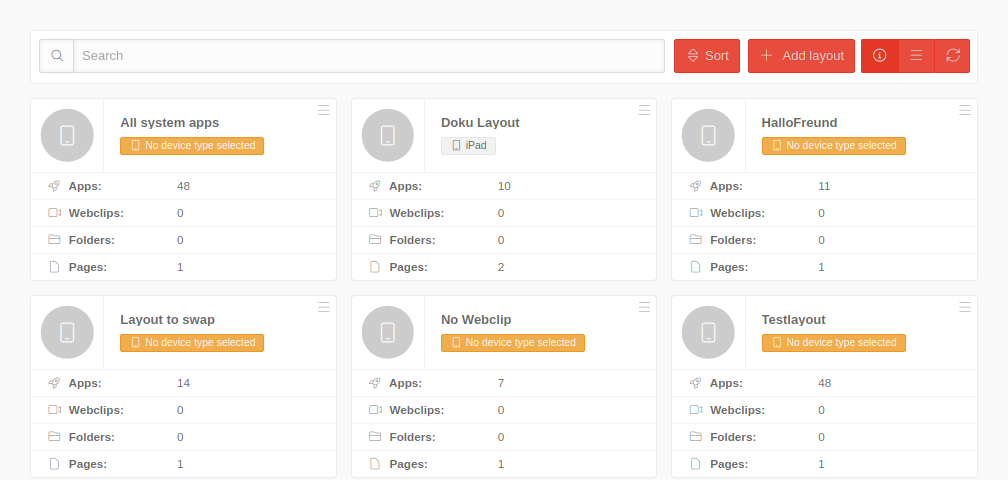 Overview of the Home Screen Layouts
|
| |
|
| Name |
Name
|
| Ascending/Descending |
Displays the search results alphabetically ascending/descending
|
|
|
Tile Options
|
| Using the button at the top right of each tile, the following options are available:
|
| Edit |
Edit the Home Screen layout
|
| Copy |
Copies the tile to the clipboard
- The paste button is displayed
- This button opens a dialog window where a new name for the copied tile can be entered
|
| Delete |
Deletes the tile
|
|
|
Add layout
Add layout
| Caption |
Value |
Description
|
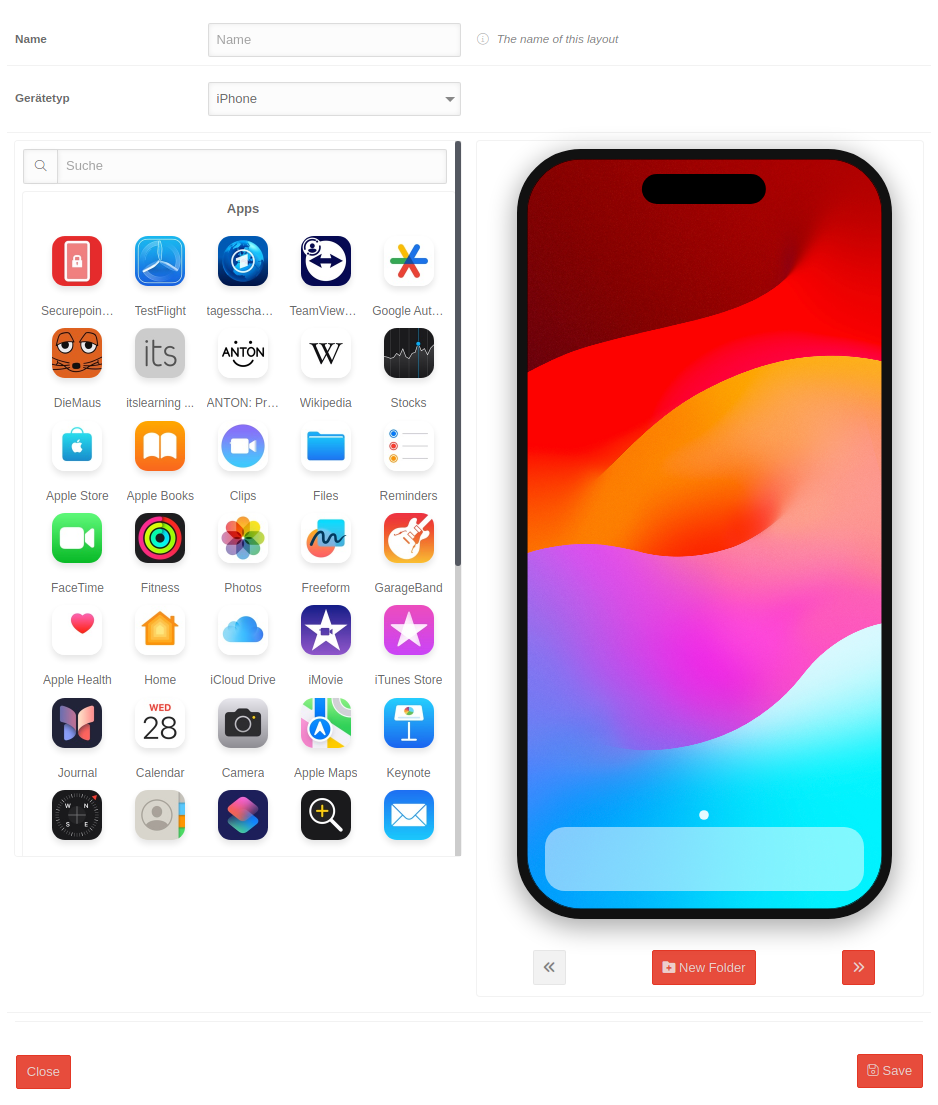 Adding a new layout using an iPhone as an example:
|
| Name |
Name |
Unique name
|
| Device type |
iPhone |
Select the device type. Available options include:
iPad
TV
|
- On the left side, a table displays all apps/web clips available for the selected device
- It includes system apps and apps available in the portal area
- Using drag and drop, apps can be placed onto the displayed Home Screen of the device on the right side, positioning them as desired
- The layout formats are: iPhone 4x6, iPad 5x6,tvOS 6x4
- Using the button New Folder to create a new folder on the Home Screen
- Using the button Create Right Screen/flip a new blank screen page is added to the right, or it flips to the next rigt screen
- Using the button Flip left screen/Delete right empty screen the last right screen is removed if it is empty
to delete a middle empty screen, the screen to the right must first be emptied and deleted
- Alternatively, you can click on Indikator-Punkte - Icons to navigate directly to the desired screen
|
| Save |
Creates the Homescreen Layout and makes it available in the profiles or applies the changes
|
| Close |
Closes the menu without saving the layout or applying changes
|
|
|