


First steps in the Securepoint reseller portal
New article: 07.2024
New:
- Links to more detailed articles added
Last updated:
- 01.2025
notempty
This article refers to a Beta version
-
A brief introduction to our reseller portal and its possibilities.
Presentation of the reseller portal
First steps in the reseller portal
- The entire video in one piece
- Below you will find the individual sections
Registration
- Open https://my.securepoint.de und Registrierung
- Register in the RSP
- Subscribe to newsletter if applicable
Your profile
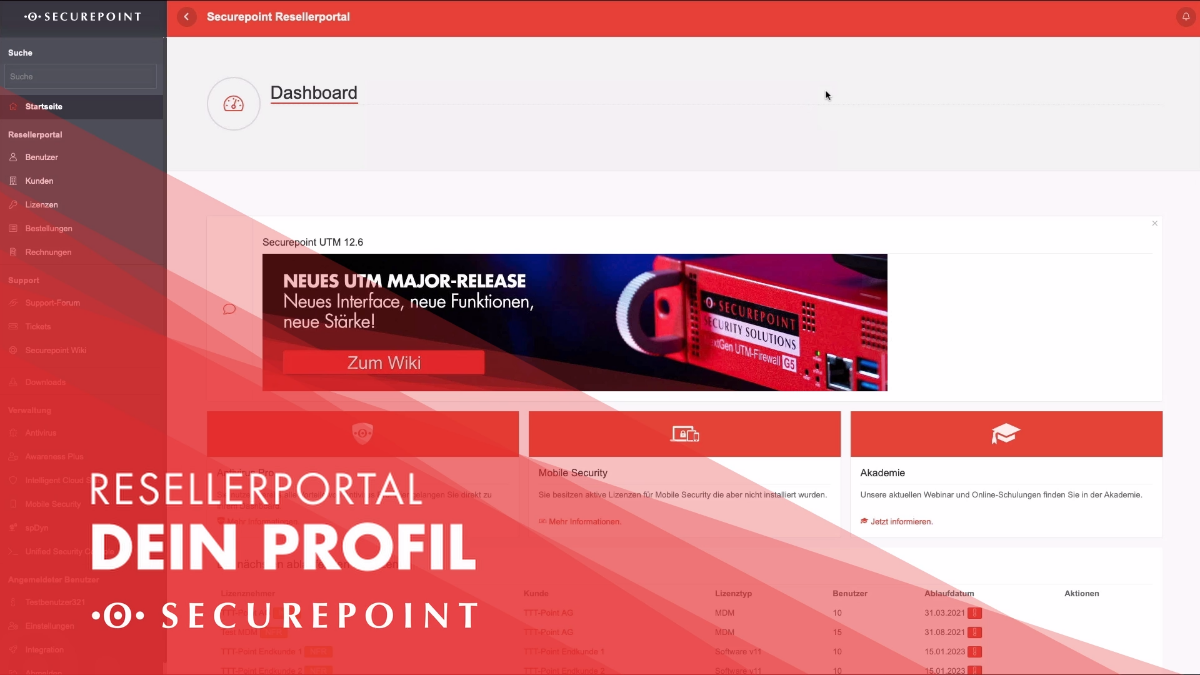
- At the bottom left of the menu, click on user name (e.g. )
- Settings for, among other things:
- Newsletter
- Evaluation of invoices
- 2FA activation (necessary when using the Unified Security Portal)
- A detailed article can be found here.
2FA setup
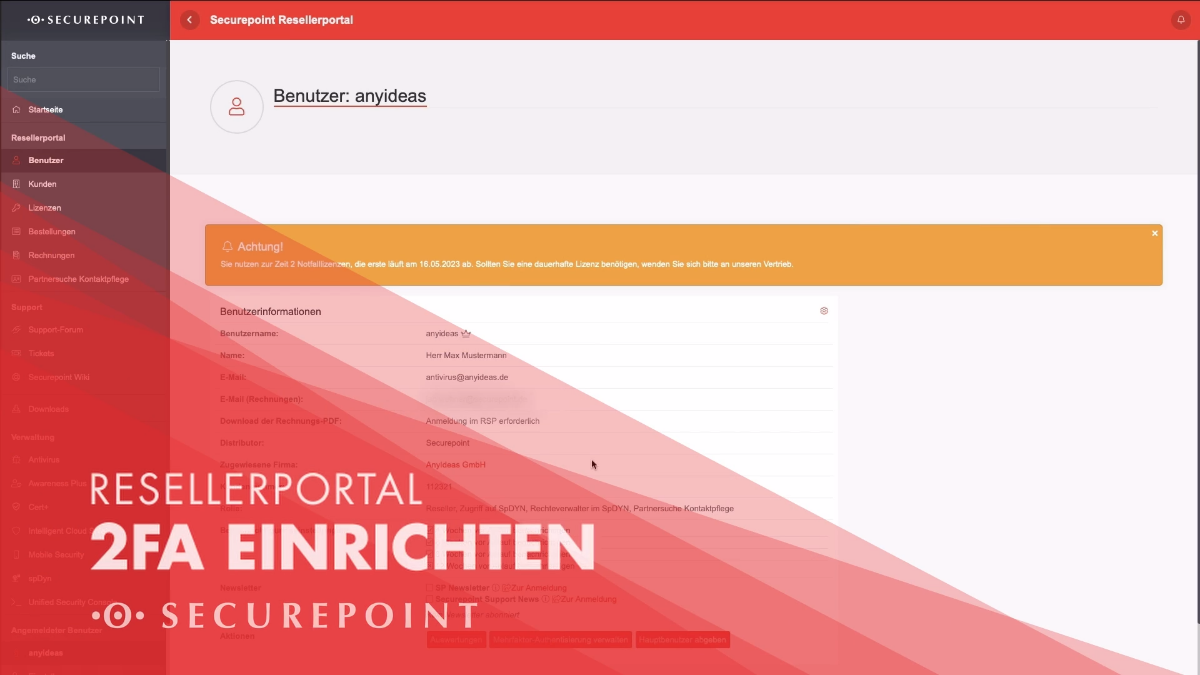
→ Manage multi-factor authentication
- Choice between SMS or TAN list
- TOTP or Webauthn can then be activated, with the first choice remaining active as a fallback
- After setup, you must log in again
- A more detailed description can be found here.
Create user
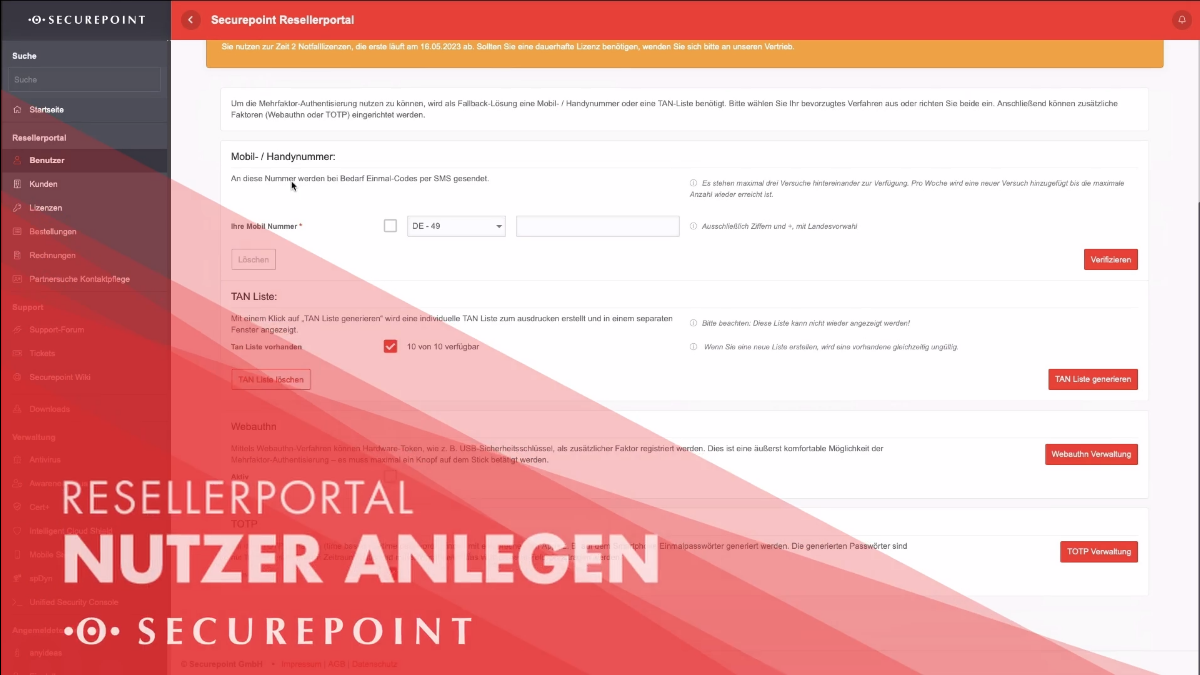
- The first user is the "Main user" (marked with )
- Only main users can invite users and edit their rights
- A separate user with the necessary rights should be created for each employee (further explanation of the authorizations
here).
- Under → Create user users can be created
- For this purpose, the e-mail address as well as the role and company of the user must be transferred
- A detailed article can be found here.
Create customers
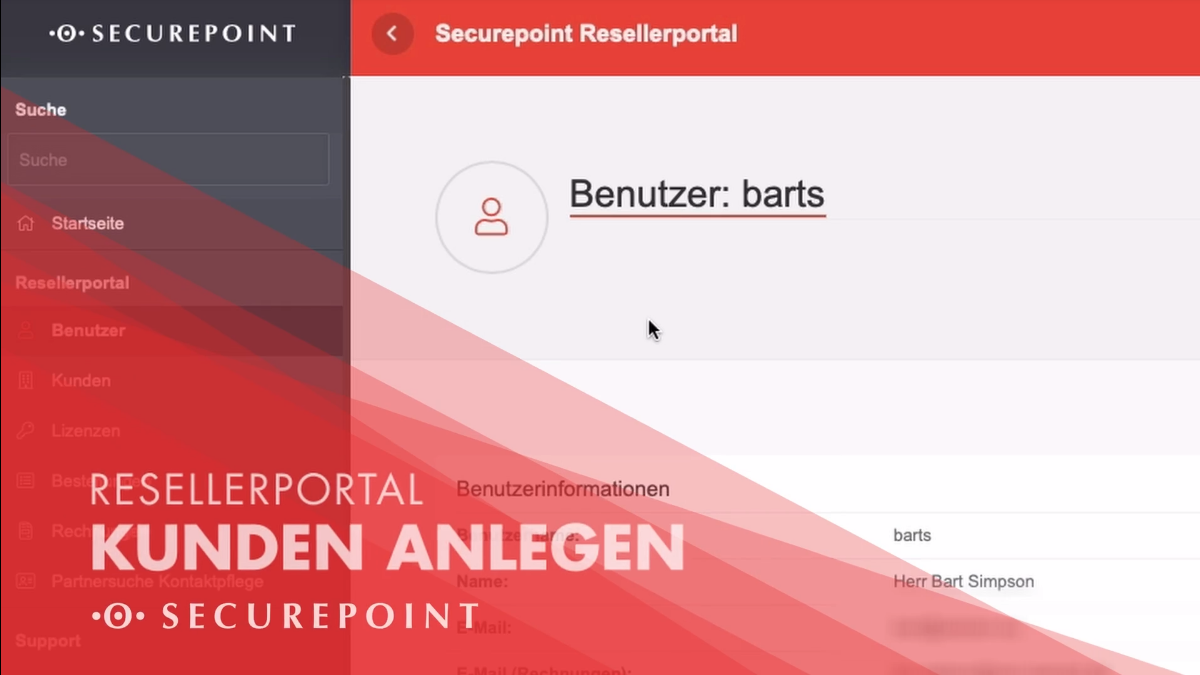
→ Create customers
- The parent company is your own
- Customer-specific number can be the customer number under which the company is managed
- All customers are listed in the customer overview (), licenses can now be created for them
- A detailed article can be found here.
Create licences
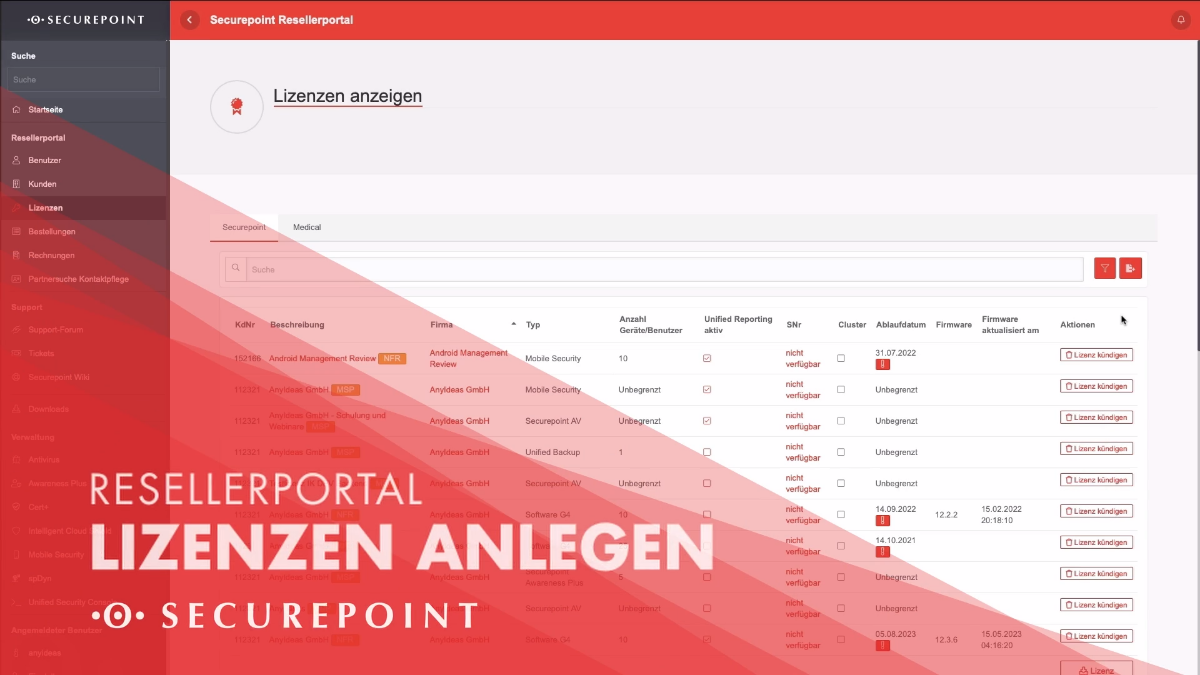
→ ... (next to a customer) → Create license
- Licenses can be created for devices that have already been purchased or orders can be created for SS-Service devices
- After ordering, licenses appear under
- These can be downloaded there and then uploaded to the UTM Firewall software to activate them
- Under you will find an order overview
- Under you can find the corresponding invoices and download them as PDF files
- A detailed article can be found here.
Analyses
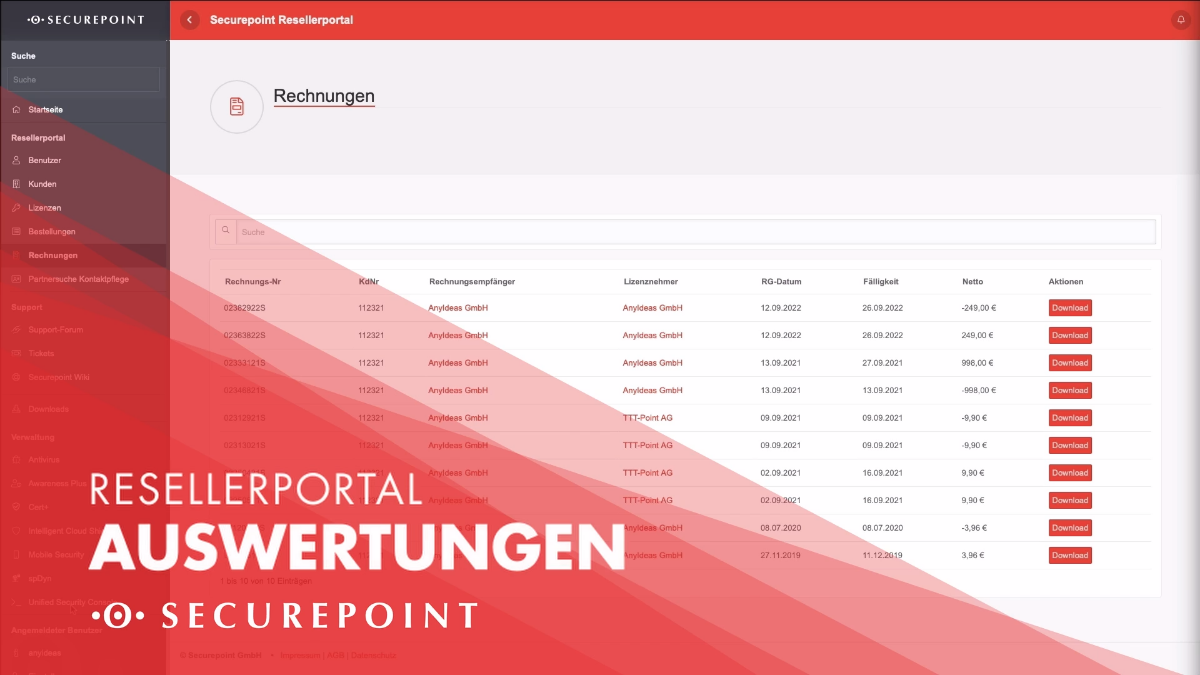
→ evaluations (at the bottom of the page)
- Provides an Excel file on the consumption of a selected month for download
- Provides an Excel file of the total consumption for download at
- A more detailed description can be found here .
Partner search
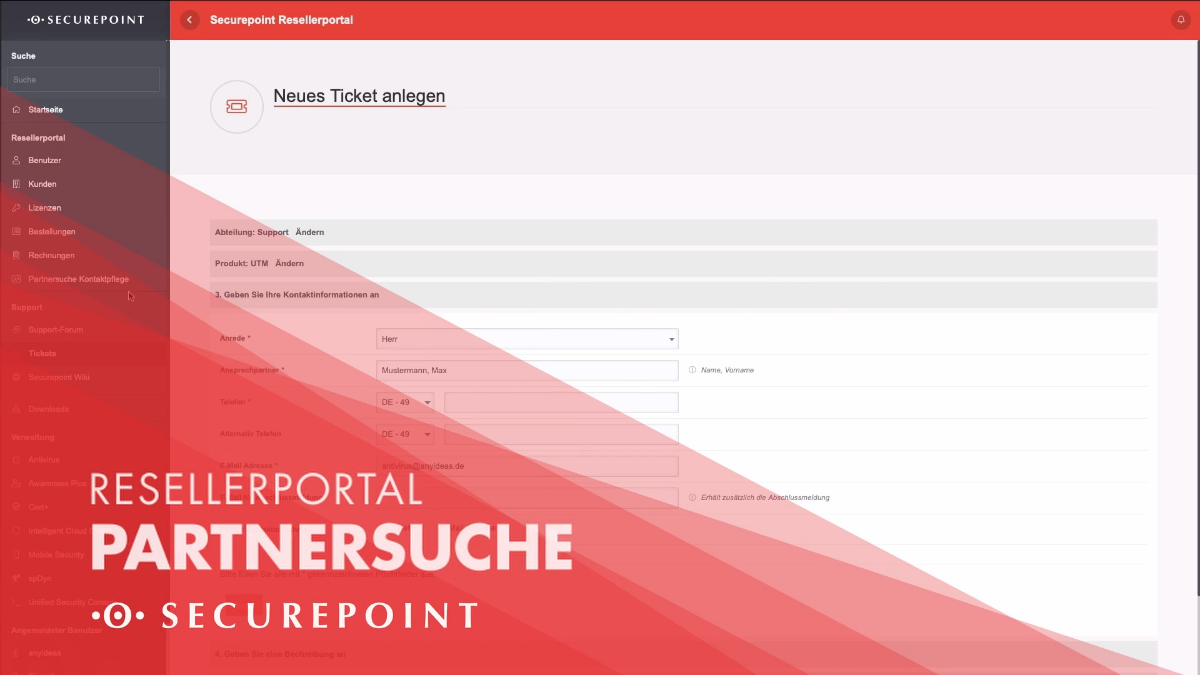
- Enter and edit the data displayed in the Securepoint partner search
- If the company location changes, this should be updated here
- Minimum requirements: Securepoint Partner Program, Operator Status
- A detailed article can be found here.
Receive support
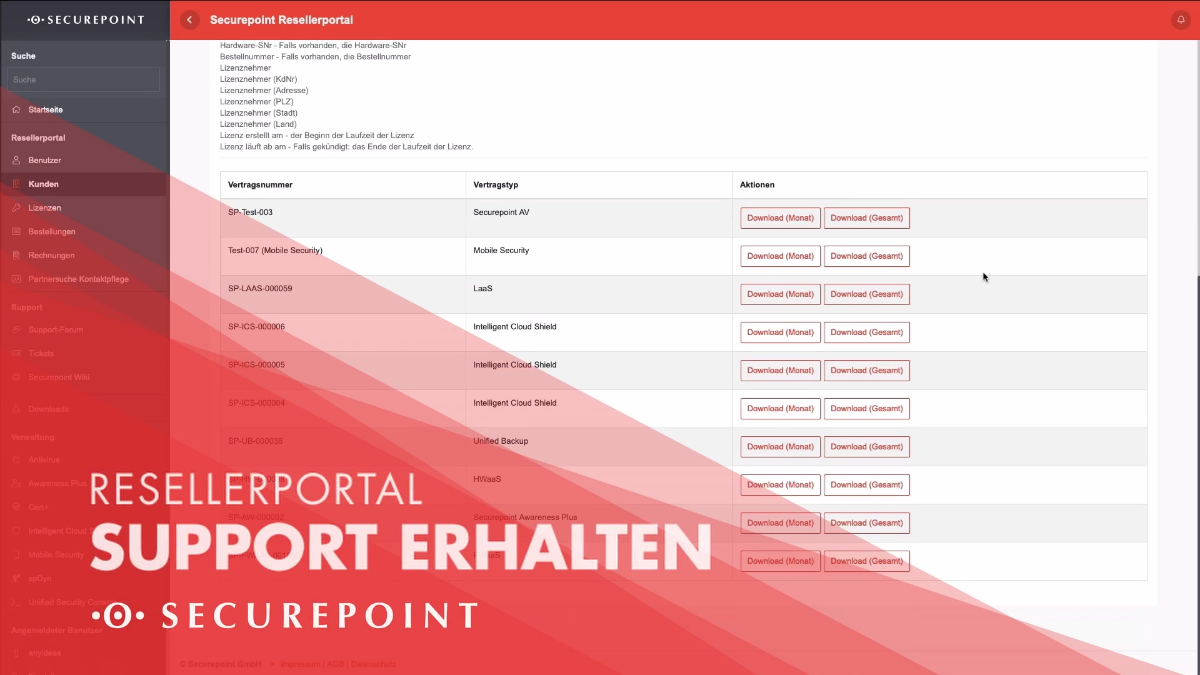
- Selection of the relevant department
- Selection of the relevant product
- Enter your own contact details
- Specification of the customer concerned and the request
- Alternative under
Further actions
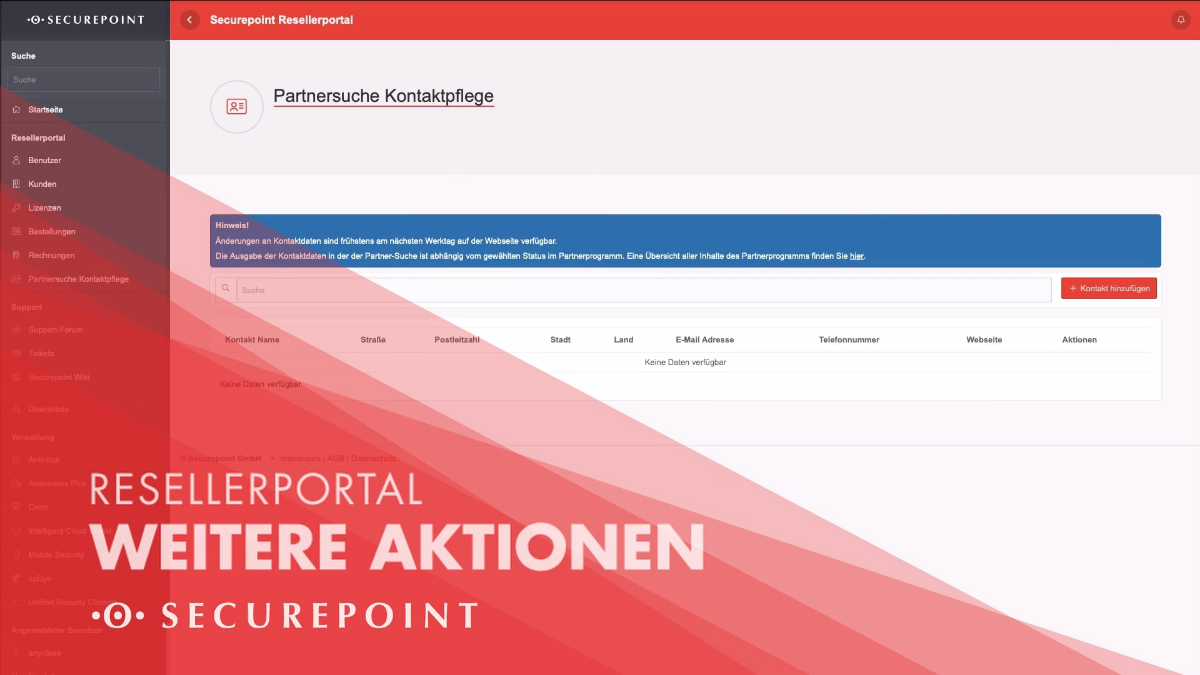
- Download of:
- Current price lists, recommended retail prices
- VPN client
- Further tools and documents
- Menu items for other Securepoint product management portals
If you have any further questions, please contact the Securepoint team