New with Securepoint: 03.2025
The Securepoint ticket system provides quick access to support in the event of questions or problems.
- Check whether the topic has already been covered in the wiki
- Create sufficient log data
- Compile basic information - Software version
- Hardware: Gx / own hardware / VM (possibly virtualization system)
- Cluster operation?
- Direct Internet access or additional routers, modem, etc.? - Ensure remote access if necessary
- Create ticket
Dashboard
Menu
The dashboard of the ticket system provides quick access to all necessary information and allows direct access to created tickets



Warnung: Der Anzeigetitel „Ticket Dashboard“ überschreibt den früheren Anzeigetitel „New Securepoint ticket system“.
Last adaption: 03.2026
- The sales team view and ticket overview have been updated
Introduction
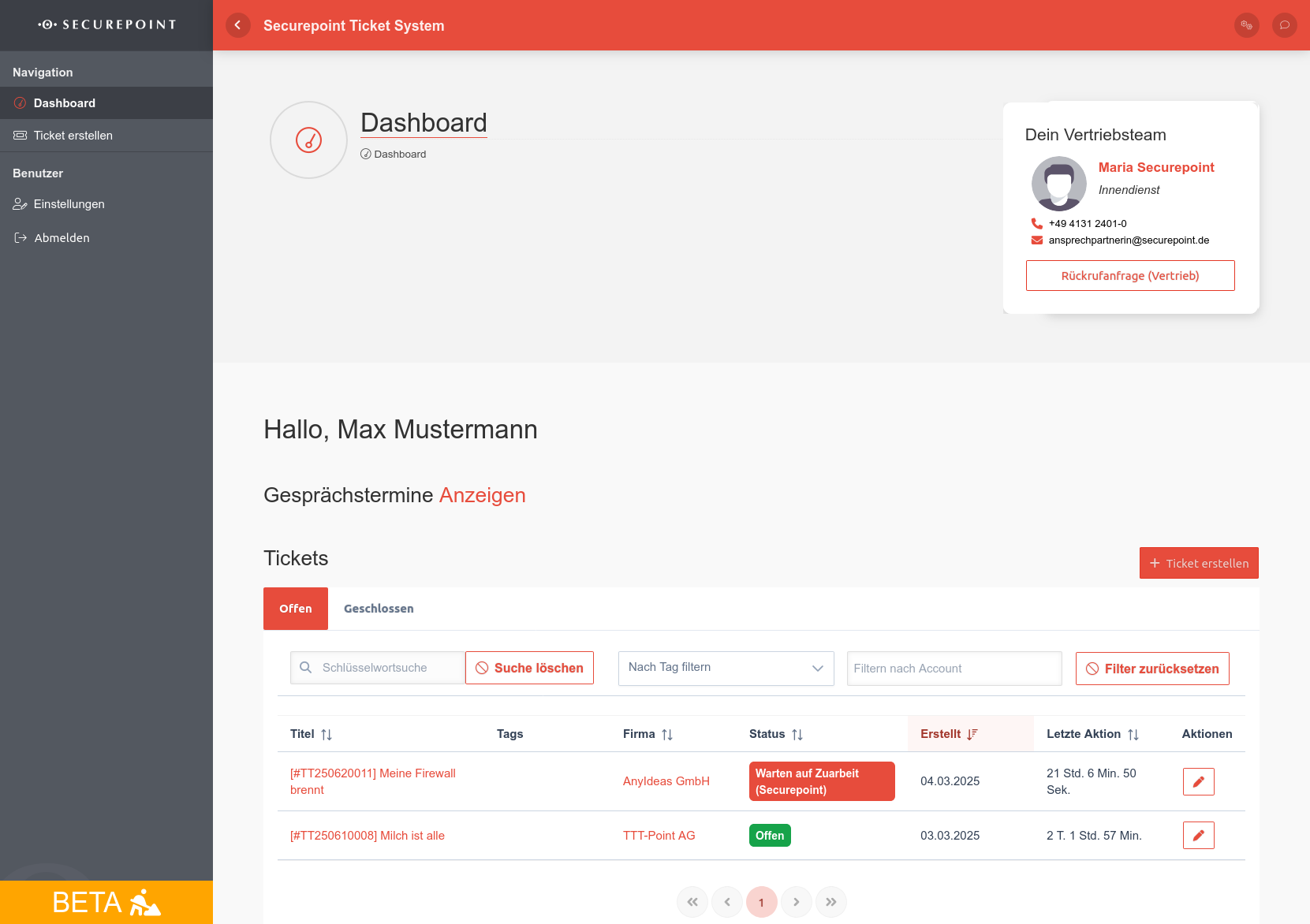
The ticket system dashboard provides quick access to all necessary information for fast communication.
Die Einstellung zum Ändern der Sprache findet sich hinter dem Zahnrad in der Kopfzeile.
</noinclude>
Sales team

Appointments
| With one click, you can display Show or hide Hide previously agreed meeting dates.
The view can be customized: | |||
| Customize overview content: | Show weekends Show only my appointments Show only my appointments |
The various checkboxes can be used to select and deselect the respective options |  Monthly overview of appointments
|
| Adjust overview period: | Month Week Tag Timeline |
Adjust the overview period | |
Tickets
| Overview of all tickets. A new ticket can be created using the Create ticket button. More detailed information can be found here.
The two tabs can be used to display only open or only closed tickets. Additional filter options are available using the other buttons: | |||
| Input field or button | Description |  Ticket overview in the dashboard
| |
|---|---|---|---|
| Search bar to search tickets by keywords | |||
| Resets the search | |||
| Filter by tags | Filter tickets by tags selected tags | ||
| Filter by account | Filter tickets by selected reseller or customer | ||
| Reset all filter settings | |||
| / / | By clicking on the column header, the values can be sorted in ascending order (smallest or oldest value first) or descending (largest or newest value first). | ||
The table displays the following information | |||
| Column | Value | Description | |
| Title | [#TT123456789] Lüfter zu laut | Ticket number and title or subject of the tickets. Clicking on the entry opens the ticket details. | |
| Tags | Tags assigned to the ticket | ||
| Company | TTT-Point AG | Company or reseller to which the ticket relates | |
| Status | Open | Status of the ticket | |
| Created | February 3, 2026 | Time of ticket creation | |
| Last Action | 5 days 21 hours | Time elapsed since the last action on this ticket | |
| Actions | Edit | Edit ticket | |
| Call |
Kontaktaufnahme per Telefon | ||
| Mail |
Kontaktaufnahme per E-Mail | ||
Create tickets
Menu
Create tickets in 6 steps:
- Customer assignment
- Contact details
- Inquiry
- Product
- Additional information
- Create ticket
Warnung: Der Anzeigetitel „Ticket creation“ überschreibt den früheren Anzeigetitel „Ticket Dashboard“.
New with Securepoint: 03.2025
Appeal
Tickets can be created in the Securepoint ticket system under .
Step-by-step creation
</noinclude>
Customer assignment
| Caption | Value | Description |  Customer assignment
|
|---|---|---|---|
| Customer | [123456] TTT-Point AG | Customer or reseller for whom the ticket is to be created. | |
| Project Only if available for the selected customer |
If the issue relates to an ongoing project, this should be selected here. This enables quick assignment to the respective Securepoint contact person for this project. | ||
Contact details | |||
| Edit contact details | Enable editing of contact details |  Contact details
| |
| Insert your own data | Overwrites individual values with the stored contact data | ||
| Name | Homer Simpson | The name of the primary contact person for this ticket. After the ticket has been created, additional contact details can be added if necessary. | |
| Preferred method of contact | E-Mail Telefon |
Select preferred method of contact | |
| homerS@ttt-point.de | Updates regarding this ticket will be sent to this email address. | ||
| Telephone | Phone number of the primary contact person for this ticket. For all numbers outside Germany, the country code must also be included. | ||
| Phone (alternative) | Alternative/Second phone number | ||
| Notify contact | Send notification to contact after ticket creation | ||
Your request | |||
| Subject | UTM fan is very loud | Clear and concise subject line that summarizes the request |  Request
|
| Description | The UTM fans are continuously very loud. The problem was noticed this morning. Rebooting did not help. Utilization is as usual, no abnormalities to be seen. | Detailed description of the problem, including all specific error messages or codes. Include a step-by-step description of how the problem occurred. | |
| Attachments | If appropriate, files can be uploaded (maximum 5 MB) Allowed file types: image/jpeg, image/png, message/rfc822, text/csv, text/markdown, text/plain, application/pdf, .csv, .eml, .jpeg, .jpg, .log, .md, .png, .txt, .utm, .pdf | ||
| Department | Support | Select the department that best suits your needs notempty
During the closed beta phase, only support tickets will be processed | |
Product | |||
| Product | UTM | Selection of the specific product |  Product
|
| Product version Only with UTM and UMA |
14.0.1 | Version of the product | |
| Hardware-SNr Only with UTM and UMA |
In case of hardware problems, the serial number of the system should be provided to enable further testing. Expected format: 'R' or 'SP' followed by digits. (Usually found on a sticker on the device) | ||
Additional information | |||
| Type of request | Disturbance | Type of request |  Additional information
|
| Visibility | Reseller | ||
| Visibility of the request
| |||
| Create ticket | Saves the information and creates a ticket | ||
Edit tickets
Menu Select ticket line Edit
A ticket is processed (further information, appointments, etc.) via direct selection in the dashboard
Ticket details
Additionally a Add comment can be inserted directly using the corresponding button at the bottom of the page
| Caption | Value | Description |  Ticket processing Ticket details section
|
|---|---|---|---|
| Title | UTM fan very loud | Title or subject of the ticket | |
| Status | Open | Ticket processing status | |
| Visibility | Reseller | Ticket visibility | |
| |||
| Tags | - | Tags assigned to the ticket | |
| Serial number / License | - | Serial number or license of the affected product | |
| Product version | 14.0.1 | If available, the current version of the affected product | |
| Package number | - | Package number of the affected package | |
| Public IP | - | Public IP address through which the appliance can be accessed | |
| Main ticket | [#TT987654321] UTM fan problems | If it is a sub-ticket, the main ticket is displayed here | |
| Remove main ticket | Removes the link to the main ticket | ||
| Project | - | Project to which the ticket is assigned | |
| Reseller | [654321] Anyideas GmbH | Reseller for the affected customer | |
| End customer | [#123456] TTT-Point AG | Affected end customer | |
| Created | 14.02.2025 13:36 from Homer Simpson | Time of creation and user who created the ticket | |
| Last change | 24.02.2025 09:36 from Homer Simpson | Date of last change and user who made the change | |
|
| |||
Subordinate tickets | |||
| Caption | Value | Description |  Ticket processing section Subordinate tickets
|
| Ticket number | #TT123454321 | Uniquely assigned ticket number of the subordinate ticket | |
| Title | Subordinate ticket | Title or subject of the subordinate ticket | |
| Actions | Edit | Edit subordinate ticket or add a comment | |
| Delete | Delete ticket as a subordinate ticket (only the assignment as a subordinate ticket is deleted, not the ticket itself) | ||
|
| |||
ContactView and edit the contact details associated with the ticket. | |||
| Button | Description |  Ticket processing section Contact
| |
| Add contact | Add another contact | ||
| Selection between existing and added contacts | |||
| Edit | Editing individual data points for the contact | ||
| Remove | Editing individual data points for the contact | ||
| Caption | Value | Description | |
| Contact person | Homer Simpson | Name of the contact person | |
| Organization | Organization of the contact person | ||
| Telephone | Contact person's phone number | ||
| Alternative telephone number | Alternative telephone number of the contact person (e.g., cell phone number) | ||
| homer@ttt-point.de | Email address of the contact person | ||
| Preferred contact method | Preferred contact method (email/phone) | ||
| Available on | Monday, Tuesday, Wednesday, Thursday, Friday | Weekdays on which the person can be reached | |
| Available from | 08:00 - 12:00 | Period of time during which the person can be reached | |
|
| |||
Responsibilities | |||
| Caption | Value | Description |  Ticket processing section Responsibilities
|
| Group | Support.Default | Group responsible for the ticket | |
| Processor | Marge Simpson | Securepoint employee processing the ticket | |
| Assistance | Lisa Simpson | Securepoint employee who assists with processing the ticket | |
| Limited to | - | Restriction of responsibility for processing the ticket to specific persons | |
|
| |||
DatesAppointments can be booked using the Add appointment button. An overview of all appointments for this ticket can be found in the table. A distinction is made between requested, confirmed, canceled, and completed tickets. notempty
Appointments can only be created once the ticket has been assigned to an agent by support notempty
New appointments initially have the status Requested and must still be confirmed by a Securepoint employee | |||
| Caption | Value | Description |  Ticket processing section Dates
|
| Date | 25.02.2025 | date of the appointment | |
| Time | 09:00 - 09:15 | Duration of the appointment | |
| Contact | Mr Homer Simpson | Contact person who will attend the appointment | |
| Details | - | Details and description of the event | |
| Actions | Edit | Edit appointment | |
|
| |||
Ticket HistoryOverview of all comments. The asterisks () mark your own comments. | |||
| Button | Description |  Ticket processing section Ticket history
| |
| All | Number of comments to display | ||
| Show history | Show comment history | ||
| Edit | Edit comment | ||
| Delete | Delete comment | ||
| / | Show/hide comment | ||
|
| |||
Add commentAdd a new comment to the ticket to record new findings or information | |||
| Caption | Value | Description | Datei:Tickets Bearbeitung Kommentar-en.png Ticket processing section Add comment
|
| Comment | Comment content Markdown formatting is supported | ||
| Notifications | Select contacts who will be notified about the new comment | ||
| Upload attachments | Attach files of up to 5 MB to the comment Acceptable file types: image/jpeg, image/png, message/rfc822, text/csv, text/markdown, text/plain, application/pdf, .csv, .eml, .jpeg, .jpg, .log, .md, .png, .txt, .utm, .pdf | ||
| Encrypt comment Additional field (added manually) |
The comment is encrypted in the database and deleted after one month | ||
| Tags Additional field (added manually) |
Add tags to ticket | ||
| / Remove | Add/remove additional field (Encrypt comment and Tags) | ||
| Save comment | Save or add comment | ||

Settings
Menu
Display of the stored data for the logged-in user

User Logout
Menu
Logout of the user