notempty
Dieser Artikel bezieht sich auf eine nicht mehr aktuelle Version!
notempty
Der Artikel für die neueste Version steht hier
notempty
Zu diesem Artikel gibt es bereits eine neuere Version, die sich allerdings auf eine Beta-Version bezieht



Last adaptation to the version: 12.6.0
New:
- Updated to Redesign of the webinterface
notempty
This article refers to a Beta version
ACME certificates (Let's Encrypt)
Area ACME
| Caption | Value | Description | UTMuser@firewall.name.fqdn Authentifizierung 
|
|---|---|---|---|
| Activated: | Yes | Enables the use of ACME certificates. For more information see below Activate ACME service. | |
| Use system-wide nameservers for ACME challenges: | Yes | If the addresses for the servers for the extension of the ACME challenges cannot be resolved via the system-wide nameserver (e.g. due to configured relay or foreward zones), alternative nameservers can be entered by deactivating No. | |
| Nameserver for ACME challenges: Can be used for ACME challenges when system-wide nameserver is disabled |
»85.209.185.50»85.209.185.51»2a09:9c40:1:53::1»2a09:9c40:1:53::2 | Here you can enter the nameservers for the ACME-Challenges. | |
Activate ACME service
Activate ACME service
To be able to use ACME certificates, this must be activated under Area ACME Enabled: Yes.
- As soon as the service has been activated and this has been saved with Vorlage:Button-dialogue, the link to the terms of use is loaded and the settings can be called up.
- With the button Activate Yes and the storage of an Email address for notifications by the ACME service provider (here: Let's Encrypt), the information can be saved with
- A dialog will appear with a link to the Terms of Use, which must be accepted Yes.
UTMuser@firewall.name.fqdnAuthentifizierung 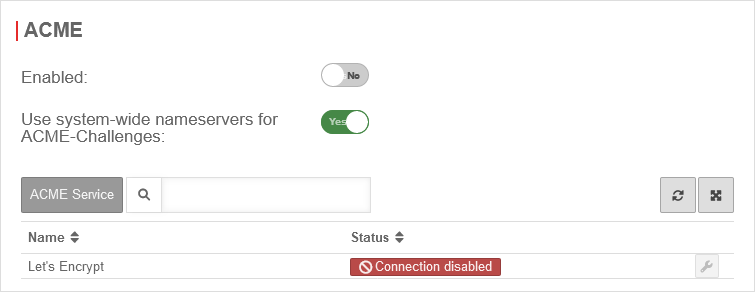

ACME service On Enable service
UTMuser@firewall.name.fqdnAuthentifizierung 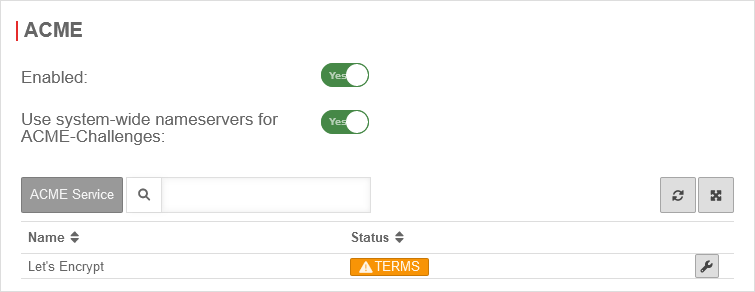

As soon as the service has been activated and this has been saved with Vorlage:Button-dialogue, the link to the terms of use is loaded and the settings can be called up.
UTMuser@firewall.name.fqdnAuthentifizierungCertificates 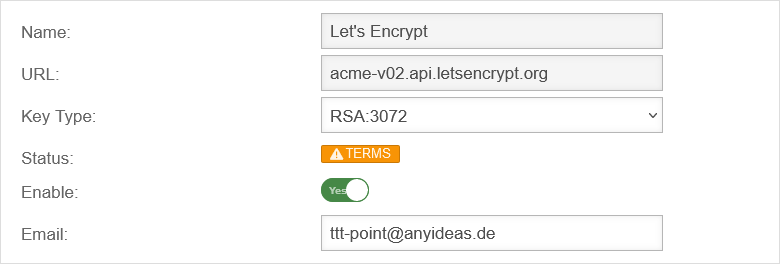

With the button Activate Yes and the storage of an Email address for notifications by the ACME service provider (here: Let's Encrypt), the information can be saved with
UTMuser@firewall.name.fqdnAuthentifizierung 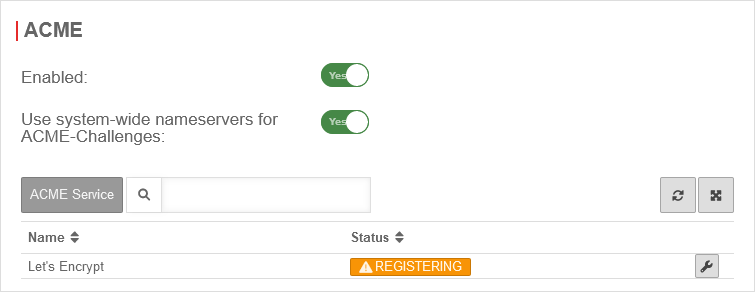

A registration with the ACME service provider is then performed
UTMuser@firewall.name.fqdnAuthentifizierung 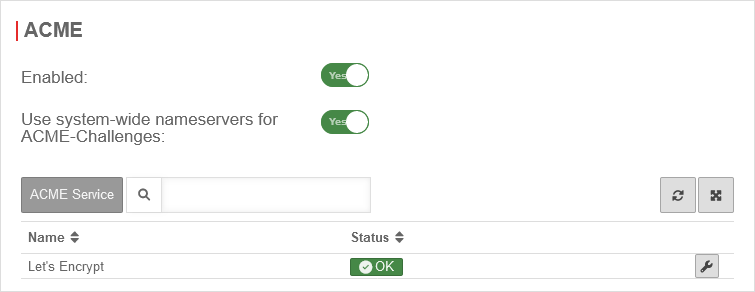

Successful registration is indicated with the status OK.
Generate token
Generate token
spDYN To generate the certificates, the ACME token must first be generated in the spDYN portal.
Within the spDYN portal, the corresponding host must be opened.
- Call up spDyn Host
- Select the ACME Challenge Token from the Token drop-down menu.
- Generate token
notemptyThe token is displayed once during generation and cannot be displayed again.
The token should be noted and stored safely.

Call up spDyn Host

Select the ACME Challenge Token from the Token drop-down menu.

Generate token
The token is displayed once during generation and cannot be displayed again.
The token should be noted and stored safely.
The token is displayed once during generation and cannot be displayed again.
The token should be noted and stored safely.
Renewal of ACME certificates
Renewal of ACME certificates
The renewal of the ACME/Let's Encrypt certificates takes place via the nameservers used, which are configured under Area ACME (see above)
ACME Certificates
ACME Certificates
After completing the previous steps, the actual certificate can now be generated. A click on in the Certificates tab opens the corresponding dialog.
| Caption | Value | Description | UTMuser@firewall.name.fqdn Authentifizierung Certificates  Add ACME certificate
|
|---|---|---|---|
Add ACME certificate | |||
| Name: | acme_ttt-Point | Name to identify the certificate | |
| Key length: | 2048 | Key length of the certificate. Possible values: | |
| ACME Account: | Let's Encrypt | ACME account which should be used | |
Subject Alternative Name configure with Add Subject Alternative Name | |||
| Subject Alternative Name: | »ttt-point.spdns.org | The Subject Alternative Name ('SAN) is stored in the certificate and corresponds to the called URL | UTMuser@firewall.name.fqdn Authentifizierung Certificates  Add Subject Alternative Name
|
| »*.ttt-point.spdns.org | If a forward zone is required for the captive portal in the nameserver and an A record is then entered for it, this is no longer resolved in the public DNS. Verification and renewal of an ACME certificate with this name will then fail. | ||
| Alias: | ttt-point.spdns.org | If the SAN is a spDYN hostname it is automatically taken on as alias. (Also for wildcard domains without * ) | |
| Token: | ••••••••••••• | The token from the spDYN portal (see above) proves to the ACME service that you are allowed to dispose of the hostname. displays the token. When inserting the token from the clipboard it can happen that there are blanks before or after the actual token. These must be removed. | |
Check configuration | |||
| Status: | Not yet checked | Before the actual generation of the certificate, the configuration must first be checked. This is done by clicking on the button. | UTMuser@firewall.name.fqdn Authentifizierung Certificates 
|
| initialize Initializes |
The check can take several minutes. During this process, the dialog is updated regularly. | ||
| Valid | If the check is successful, the status Valid is displayed. | ||
| DNS error | Possible causes:
| ||
Configure subject alternative name for an external DNS zone with Add SAN for external DNS zone | |||
| Subject Alternative Name: | ttt-point.anyideas.org | The Subject Alternative Name (SAN) from the external DNS zone. | UTMuser@firewall.name.fqdn Authentifizierung Certificates 
|
| Alias: | ttt-point.spdns.org | The alias must also be the spDYN name for the external DNS. | |
| DNS Provider | Basically, an additional CNAME record with the prefix _acme-challenge and the subsequent host name must be created at the DNS provider hosting the external zone (here: ttt-point.anyideas.org). _acme-challenge.ttt-point.spdns.org. (With "." at the end!) An example excerpt from a Zonefile for the configuration of the two hostnames mx.ttt-point.de and exchange.ttt-point.de looks like this: _acme-challenge.mx.ttt-point.anyideas.org. IN CNAME _acme-challenge.ttt-point.spdns.org. _acme-challenge.exchange.ttt-point.anyideas.org. IN CNAME _acme-challenge.ttt-point.spdns.org. Certificate creation for .local, .lan, etc. zones is not possible. notempty If the internal and the external/public domain are identical, the zone must also be delegated to the internal DNS. | ||
| Additional SANs can be added and checked as long as the button has not been pressed. | UTMuser@firewall.name.fqdn Authentifizierung Certificates 
| ||
| Status: | Valid | Once all the required SANs have been successfully checked, the certificate can be saved. | UTMuser@firewall.name.fqdn Authentifizierung Certificates 
|
notempty Once the certificate has been saved, no more changes can be made. Only the alias and the token can be changed for existing SANs. | |||
Creation of the ACME certificateCreation of the ACME certificate | |||
| If the previous steps have been completed successfully, the actual process for validating and generating the certificate is triggered by clicking Save. This process may take some time. To update the status, the dialog must be reloaded manually. |
UTMuser@firewall.name.fqdn Authentifizierung Certificates 
| ||
Status valuesStatus values | |||
| The following status values can occur | |||
| Status | Description | Note | |
| Valid | The ACME certificate is valid | ||
| Not yet verified | The ACME certificate still needs to be verified | ||
| Internal error | An internal error has occurred | Possible causes:
| |
| Connection error | No connection possible / present | Check the connection settings | |
| Invalid | The ACME certificate is invalid and cannot be used | ||
| DNS error | A DNS error has occurred | Possible causes:
| |
| Banned | The ACME certificate has been revoked | Either it has been manually revoked, or it has lost its validity. For example, the ACME certificate expired and was not renewed. | |
| Initializing | The verification of the ACME certificate is initiated | This can take several minutes. The status is updated regularly. | |
| Deferred | The verification of the ACME certificate is postponed | Refreshing the status will take some time, since the limit of requests was already reached | |
| Initialized | The ACME certificate is being verified | The verification of the ACME certificate is initiated | |