New at Securepoint: 10.2026
Data traffic conditions



Communication conditions
- Communication between all components takes place via TLS-secured connections with mutual certificate verification and certificate pinning.
- In particular, this means that the TLS connection between the components must not be interrupted.
- If necessary, an exception for access to port 443 (HTTPS) must be set up in a upstream firewall and/or (transparent) proxy so that other Application Control Appliances and the AdminWizard can access the Application Control Appliance and the TrustLevel Service database without filtering.
- Proxies are not supported.
Syslog Server
- The Application Control Appliance can send log messages to an external Syslog server.
- The Syslog server itself is not part of the Application Control Appliance. However, various commercial and free products are available. Every Linux distribution includes a Syslog server.
- Syslogs are mandatory for support requests.
Data traffic between components
| Component | Communication partners | Port |
|---|---|---|
| Application Control Appliance | Hosts:
|
|
| other Application Control Appliance in a cluster |
| |
| Possible self-configured DNS, NTP, and Syslog servers | Standard ports of the services | |
| AdminWizard | Hosts:
|
|
| Application Control Appliance |
| |
| Agent | Application Control Appliance |
|
| Client computer (without access to Active Directory) | Cloudflare CDN |
|
VMware installation
Installation using the VMware Web Console


Installation using ovftool in VMware
Alternatively, the OVA can be imported into VMware ESXi using ovftool. For this, the storage location, path to the OVA file, root password, and ESXi IP address must be entered in the following code:
ovftool.exe --acceptAllEulas --name=SecuLution --datastore=<storage_location> "<path_to_OVA_file>" vi://root:<esxi_root_password>@<esxi_IP_address>
Network card settings
The network card adapter type must be VMXNET3, and a random static MAC address should be chosen. These addresses range between 00:50:56:00:00:00 and 00:50:56:3F:FF:FF
Resource requirements of the Application Control Appliance
| Component | Explanation |
|---|---|
| CPU | For good performance of the Application Control Appliance, 12 CPUs are recommended; in test environments, a minimum of 4 CPUs is required. The database of the Application Control Appliance can temporarily utilize up to 8 CPUs, which means that with fewer than 9 CPUs, the operating system would not have sufficient performance available. Therefore, 12 CPUs have proven to be optimal. The appliance only uses CPUs when computationally intensive tasks are being performed, such as operations in the AdminWizard GUI or other system-internal processes. |
| RAM |
|
| BIOS | For the Application Control Appliance, it is possible to maintain the BIOS time in local time |
| Resources | For stable operation of the virtual machine, it is important that the Application Control Appliance has sufficient resources available even under high load on the hypervisor (e.g., during backup of the virtual machine) to perform its work without hindrance. In most cases, reserving CPU resources (reservation of 5000 MHz) is sufficient for this. |
Other hypervisors
Import or convert OVA
The Application Control Appliance is provided as an OVA, which can be imported into all common virtualization environments.
If the ESXi version does not match the OVA to support the hardware version of the OVA or .vmdk, a hardware conversion must be performed.
Proxmox
The following script automates the import of a virtual machine from an OVA file into Proxmox.
The configuration variables at the beginning of the script must be individually adjusted.
Hyper-V
- Unpack the OVA file via PowerShell or another console with the following command
tar -xf C:\<Pfad>\Securepoint_Appliance_5\Securepoint_Appliance_5.ova - Temporarily save the path to VirtualBox in the current session
$env:Path += ";C:\Program Files\Oracle\VirtualBox" - Convert to VHD after unpacking
VBoxManage clonemedium disk "C:\<Pfad>\Securepoint_Appliance_5\Securepoint_Appliance_5-disk1.vmdk" "C:\<Pfad>\Securepoint_Appliance_5\Securepoint_Appliance_5_vbox.vhd" --format VHD - Then convert to VHDX. This can then be specified directly as a hard disk in Hyper-V
Convert-VHD -Path "C:\<Pfad>\Securepoint_Appliance_5\Securepoint_Appliance_5_vbox.vhd" -DestinationPath "C:\<Pfad>\Securepoint_Appliance_5\Securepoint_Appliance_5_vbox.vhdx"
Convert image to .vhdx with QEMU
- Unpack the OVA file via PowerShell or another console with the following command
tar -xf C:\<Pfad>\Securepoint_Appliance_5\Securepoint_Appliance_5.ova - Install QEMU for Windows via Winget
winget install --id=SoftwareFreedomConservancy.QEMU - Temporarily save the installation path of QEMU in the current session
$env:Path += ";C:\Program Files\qemu" - Convert the OVA file to a VHDX file.
qemu-img convert -f vmdk -O vhdx "C:\<Pfad>\Securepoint_Appliance_5\Securepoint_Appliance_5-disk1.vmdk" "C:\<Pfad>\Securepoint_Appliance_5\Securepoint_Appliance_5.vhdx"
The .vhdx file can then be specified directly as a hard disk in Hyper-V
KVM
Convert image to qcow2 with QEMU
- Unpack the OVA file using Linux built-in tools with the following command:
tar -xf /<Pfad>/Securepoint_Appliance_5/Securepoint_Appliance_5.ova - If necessary, install qemu-img usingShow CodehideKlicken für dauerhafte AnzeigeUbuntu, Linux Mint, Kali Linux, Debian:sudo apt update
sudo apt install qemu-utilsFedora, RHEL, CentOS, Rocky Linux, AlmaLinux:sudo dnf install qemu-imgArch Linux, Manjaro, Endless OS:sudo pacman -S qemuopenSUSE:sudo zypper install qemu-tools/ - Convert the vmdk file to a qcow2 file
qemu-img convert -f vmdk -O qcow2 /<Pfad>/Securepoint_Appliance_5/Securepoint_Appliance_5-disk1.vmdk" /<Pfad>/Securepoint_Appliance_5/Securepoint_Appliance_5.qcow2
The qcow2 file can now be added as a hard disk in Virt-Manager or another KVM management tool for the VM.
General notes
- Unpack OVA using 7zip
- Create a new VM on the hypervisor (consider resource requirements), do not create a hard disk
- Upload/copy the unpacked .vmdk to the folder of the previously created VM
- Add the .vmdk to the VM as an existing hard disk
IP configuration of one or more Application Control Appliances
- After installation, the Application Control Server Appliance requests a (temporary) IP address from a DHCP server on the first start.
- If no DHCP server is operated in the network segment of the Application Control Server Appliance, a temporary IP address can be manually entered in the console during boot.
- With a temporary change of the IP in the console, the IP configuration only applies for this single boot process, i.e., after each reboot, the IP is reset to the permanently configured IP.
- A permanent change of the configuration must then be made via the
 AdminWizard at
  Securepoint Appliance, section IP Konfiguration der Appliance(s), button Konfiguration
Application Control supports the operation of multiple, parallel Application Control appliances. These appliances then function as a cluster featuring automatic load balancing, synchronization, and redundancy.
- Initially, only one Application Control Appliance should be put into operation
- The AdminWizard should be connected to the first Application Control Appliance, and in the AdminWizard GUI under "Application Control Appliance," the IP configuration for the additional Application Control Appliances must be performed
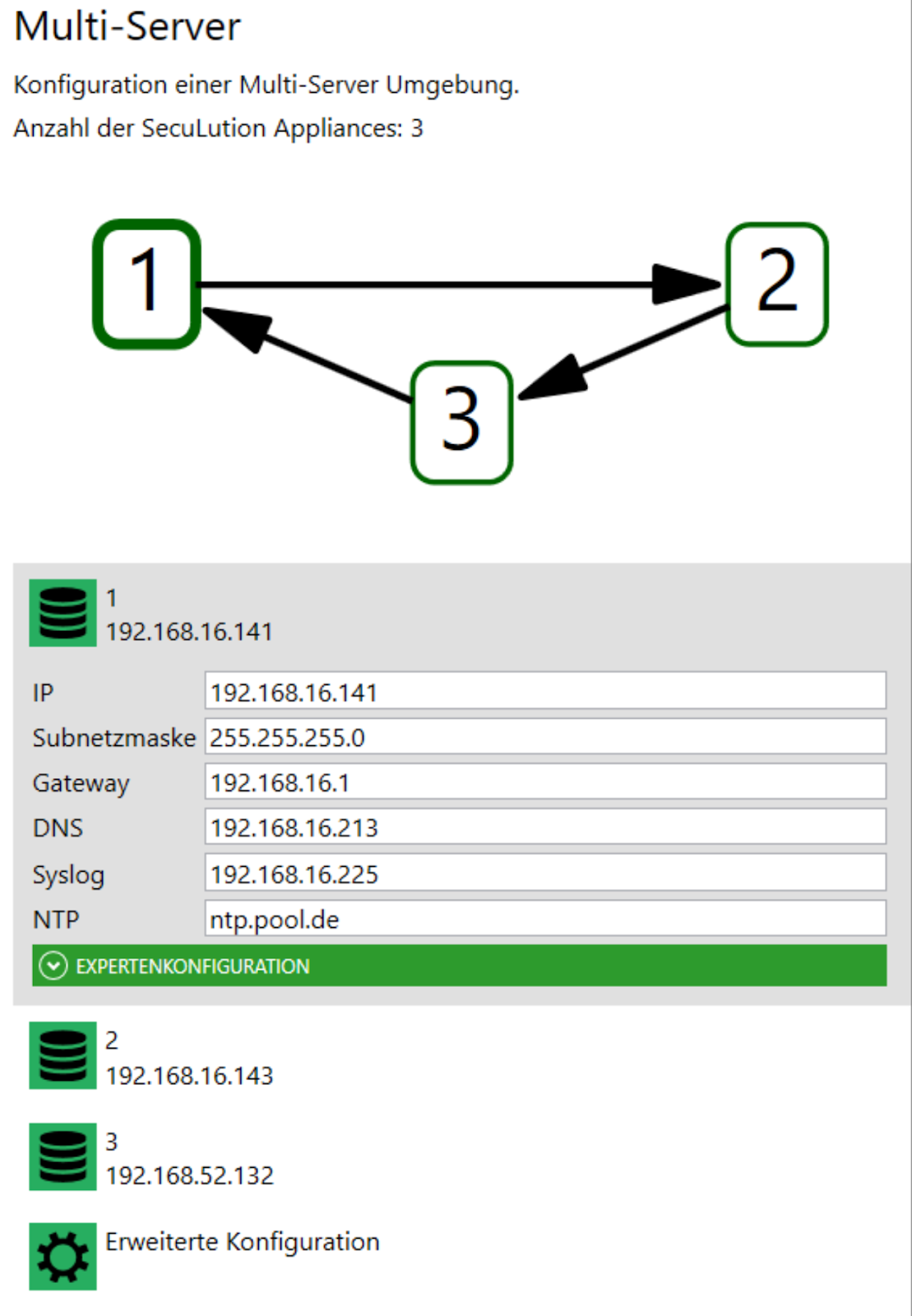
- If licensed, additional Application Control Appliances can now be put into operation by importing the same OVA image used for commissioning the first Application Control Appliance. During startup, each additional Application Control Appliance must be informed of the IP address at which the first Application Control Appliance can be reached. To do this, select the boot menu on the console and specify the IP address of the first Application Control Appliance already in operation under "multi-server setup." Each additional Application Control Appliance will now automatically and independently perform the following steps:
- Obtain an IPv4 address via DHCP
- Contact the IP address of the first Application Control Appliance specified via the boot menu and download the IP configuration of all servers
- Ping the IP address of the second Application Control Appliance to check if the IP address of the second Application Control Appliance is available (ping is unsuccessful, meaning the second Application Control Appliance is not yet in operation)
- Store the IP configuration for the Application Control Appliance from step b in the Application Control Appliance
- Reboot
- Start operation with the determined IP address
- Synchronize the database with the existing Application Control Appliances
- If necessary, put additional Application Control Appliances into operation as described in step 3
- If necessary, a reboot of the Application Control Appliance may be required after completing the installation of all instances of the Application Control Appliance cluster, as the first Application Control Appliances could not yet reach the subsequently commissioned Application Control Appliance during boot
- The Application Control Appliances of the cluster boot with an empty database (whitelist) and therefore in learning mode. During this time, no programs are denied. If available, restore a backup of the previous Application Control Appliance and disable learning mode.
