


Configuration in Azure AD to be able to access its users with the UMA
Last adaptation to the version: 3.3.4 (07.2023)
New:
- Azure Cloud Update in the Setup Wizard and in the Email Accounts menu
- User authentication using Microsoft Azure enables multi-factor authentication in the DMS
- Client secret ID from Azure AD required (v3.2)
notempty
This article refers to a Beta version
Requirements
- Users in Azure AD with mail addresses to be archived
Azure AD configuration
The following steps are necessary:
- In Azure AD, the Securepoint UMA NG must be registered as a new app
- The following permissions are required:
- MS-Graph / Delegated Permission:
- User.Read (should already exist as default permission)
- MS-Graph / Application Permissions:
- Group.Read.All
- MailboxSettings.Read
- User.Read.All
- Application.Read.All
- MS-Graph / Delegated Permission:
- A Secret Client Key must be added to the app
- In order to archive additional mail addresses besides the original Microsoft Azure email address, these must be stored in the user profile in the Azure Active Directory in the section Contact information as Alternative email address.
The login of the user in the Securepoint UMA NG is then done with the user principal name (user pricipal name) and the corresponding password from Azure AD.
| 1. | 2. | 3. |
| Abb.1 | Abb.2 | Abb.3 |
| Abbildungen | ||

Fig.1
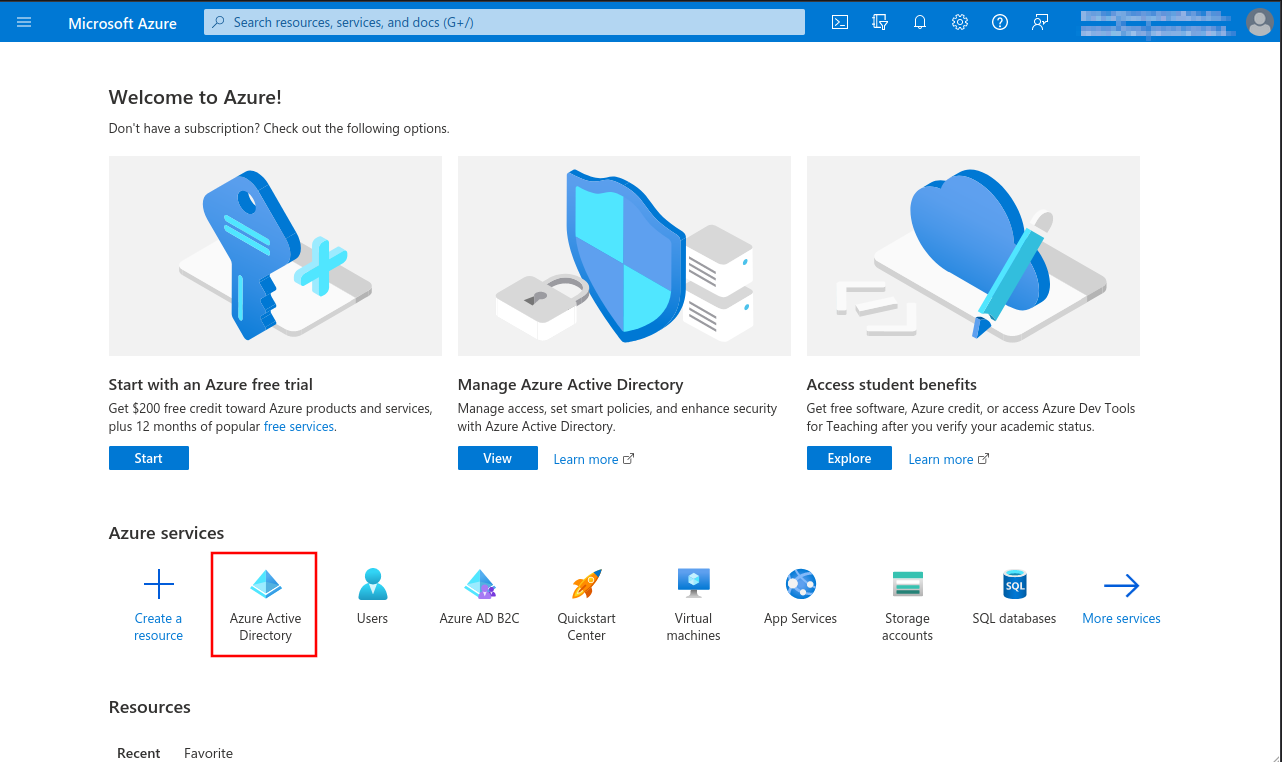
- Opening the Azure Dashboard or the Microsoft 365 Portal
- Menu Azure Active Directory

Fig.2
Menu App registrations

Fig.3
Button + New registration

Fig.4

Fig.5
- Application ID (Client ID)
- Directory ID (client)
- Client Secret ID

Fig.6

Fig.7

Fig.8

Fig.9
This lets you find the permission you need faster.

Fig.10
- Mark API permission MailboxSettings.Read

Fig.11
- Mark API permission User.Read.All
- button Add permissions

Fig.12

Fig.13

Fig.14

Fig.15

Fig.16

Fig.17

Fig.18

Fig.19

Fig.20
The Secret client Key must be renewed in a timely manner. After the validity period expires, emails will no longer be delivered to the UMA and users of the UMA DMS will no longer be able to be authenticated by Azure AD.

Fig.21
New as of 3.1.3 Both values are required for configuration in the Securepoint UMA.

Fig.22
- In order to archive additional mail addresses besides the original Microsoft Azure email address, these must be stored in the user profile in the Azure Active Directory in the section Contact information as Alternative email address.
The login of the user in the Securepoint UMA NG is then done with the user principal name (user pricipal name) and the corresponding password from Azure AD.
For mailbox import and journal mailbox use from Azure, additionally configured apps in Azure are required.
This article includes descriptions of third-party software and is based on the status at the time this page was created.
Changes to the user interface on the part of the manufacturer are possible at any time and must be taken into account accordingly in the implementation.
All information without warranty.
- Tenant ID
- Client ID
- Client secret
- Launch Azure Active Directory admin center
- Note down/Copy Tenant ID from the Azure Active Directory menu
- Register new app under theApp registration menu under the New registration button
- Assign a unique name and click the register button
- In the API permissions menu, click the Add a permission button.
- Select permission for Office 365 Exchange Online in the APIs my organization uses tab
- Add IMAP.AccessAsApp permission for Office 365 Exchange Online
- In the menu API permissions activate the entry Grant admin consent for [...].
- Create a Client secret in the Certificates & secrets menu
- Note down Value, is entered as Client secret for Remote e-mail accounts and Import single mailboxes
- Open menu Enterprise Applications and select app
- Note down from the app properties Application ID and Object ID.
- Open Powershell on Windows Client Administrator, import ExchangeOnlineManagement and connect to tenant
- Select the recipient mailbox in the Exchange admin center and choose Read and manage (Full Access) as delegation.
- Add member for Mailbox Delegation
- This completes the configuration in Microsoft Azure.
Further configuration is done in the UMA in the
System settings Tab Email accounts section Azure AD menu, in the setup wizard or when importing mailboxes. - The Microsoft servers may take up to 30 minutes before access works
| 1. | 2. | 3. |
| Abb.1 | Abb.2 | Abb.3 |
| Abbildungen | ||

Fig.1
- Select Azure Active Directory menu
- Note down or copy Tenant ID, is entered for remote e-mail accounts and for importing single mailboxes

Fig.2
Register new app:
Menu App registration
Button New registration

Fig.3

Fig.4
A summary of the newly registered app is displayed
The Object ID displayed here does not belong to the app and is not needed!
Select API permissions menu

Fig.5

Fig.6

Fig.7

Fig.8

Fig.9
Grant admin consent for... successfully granted

Fig.10

Fig.11
Note down Value, is entered as Client secret for Remote e-mail accounts and Import single mailboxes

Fig.12

Fig.13

Fig.14
Note down from the app properties:
Application ID, is entered as Application (Client) ID for Remote E-mail Accounts and Import Individual Mailboxes
Object ID, is required for the granting of the authorisation via Powershell

Fig.15
If there are problems installing the module or connecting, you may need to configure Powershell to TLS 1.2:
>[Net.ServicePointManager]::SecurityProtocol = [Net.SecurityProtocolType]::Tls12
>[Net.ServicePointManager]::SecurityProtocol = [Net.SecurityProtocolType]::Tls12
- > Install-Module -Name ExchangeOnlineManagement -allowprerelease
- > Import-module ExchangeOnlineManagement
- > Connect-ExchangeOnline -Organization Tenant ID (See Fig.1)
- > New-ServicePrincipal -DisplayName SecurepointServicePrincipal -AppId Enterprise-oApp-ooID-oooo-oooooooo -ServiceId Enterprise-oObj-ooID-oooo-oooooooo
- For Enterprise-oApp-ooID-oooo-oooooooo enter the Application ID and for Enterprise-oObj-ooID-oooo-oooooooo enter the Object ID (see Fig. 14)
- > Add-MailboxPermission -Identity alice@anyideas.onmicrosoft.com -User SecurepointServicePrincipal -AccessRights FullAccess
The Microsoft servers may take up to 30 minutes before access works
The preparatory configuration of the Azure AD is now complete
Configuration in the UMA
In the setup wizard
| Caption | Value | Description |  Azure AD credentials in step 3 of the setup wizard
|
|---|---|---|---|
| Repository Type | Selecting Azure Active Directory as authentication source | ||
| Directory (tenant) ID: | ••••••• | Directory ID (client) from the app registration in Azure AD | |
| Application (client) ID: | ••••••• | Application ID (Client ID) from the app registration in Azure AD | |
| Secret Value: | ••••• | Value of the client secret key from the Certificates & Secrets section of Azure AD | |
| Secret ID: | ••••• | New as of 3.1.3 Secret ID of the client secret key from the Certificates & Secrets section of Azure AD | |
| Azure Cloud: | notempty Is no longer available as of UMA version 3.3.4. Microsoft has closed Azure Cloud Germany. |
Selection of the Azure Cloud that hosts the AD | |
| User authentication method |
Logging in to the DMS is done exclusively with the data from the user accounts configured above. | ||
| |
Authentication in the DMS via Microsoft Azure. The login dialog offers a button that leads to the Microsoft login. This enables e.g. two-factor authentication (2FA) | ||
| |
Authentication in the DMS using the data from the user accounts configured above or via Microsoft Azure. The login dialog offers the possibility to log in with username and password and alternatively an additional button that leads to the Microsoft Azure login. | ||
| Verify the credentials and go to the next step | |||
Menu System Settings / Email Accounts
| Caption | Value | Description |  Configuration in the Admin Interface
|
|---|---|---|---|
| User repository | Selecting Azure Active Directory as authentication source | ||
| Directory (tenant) ID: | ••••••• | Directory ID (client) from the app registration in Azure AD | |
| Application (client) ID: | ••••••• | Application ID (Client ID) from the app registration in Azure AD | |
| Secret Value: | ••••• | Value of the client secret key from the Certificates & Secrets section of Azure AD | |
| Secret ID: | ••••• | New as of 3.1.3 Secret ID of the client secret key from the Certificates & Secrets section of Azure AD | |
| Azure Cloud: | notempty Is no longer available as of UMA version 3.3.4. Microsoft has closed Azure Cloud Germany. |
Selection of the Azure Cloud that hosts the AD | |
| User authentication method |
Username and Password | Logging in to the DMS is done exclusively with the data from the user accounts configured above. | |
| Single Sign-on |
Authentication in the DMS via Microsoft Azure. The login dialog offers a button that leads to the Microsoft login. This enables e.g. two-factor authentication (2FA) | ||
| Single Sign-on or username and Password |
Authentication in the DMS using the data from the user accounts configured above or via Microsoft Azure. The login dialog offers the possibility to log in with username and password and alternatively an additional button that leads to the Microsoft Azure login. | ||
| Verifies the credentials and opens a window showing all available user accounts on the server. The lists (Public and Private) can be searched. |  User accounts on the server
| ||
Selection of individual accounts (archive only individual accounts) Selection of individual accounts (archive only individual accounts)
| |||
| Activate manual selection | Selecting this option allows a limit to archiving of individual accounts |
 | |
Archived user accounts Archived user accounts
| |||
Manage subscriptions
|
Enables read permission on public folders  |
 | |
| Show advanced settings Other functions after activation: Edit user
| |||
| Action: Move |
In case of a move, the archive mailbox will be renamed and/or the type will be changed. The purpose of this is, for example, to allow access to archive folders whose owners have been made inactive or deleted in AD: A private archive is changed to public. Afterwards the archive can be made accessible to an active user under Manage subscriptions. |  Dialog Edit user
| |
| New name: | New archive name. If the username is not changed in the Azure AD, direct access to the archive is no longer possible | ||
| New type: | User mailbox type: private or public | ||
| Reason: | The reasoning is recorded in the log and remains visible for an unlimited period of time | ||
| Action: Merge |
Transfers the archived mails of one archive account to another archive account |
 Merging of user accounts
| |
| Data transferred to: | User account to which the mails are to be transferred | ||
| Reason: | The reasoning is recorded in the log and remains visible for an unlimited period of time | ||
| Delete | When deleting mail accounts from the archive, it must be noted whether legal regulations for retention are affected! In order to prevent unintentional or incorrect deletions, the administrator password must also be entered. |
 Dialog Delete user  Check admin password | |
LDAP search settings LDAP search settings
| |||
| Referrals | LDAP-Referrals provides a reference to an alternate location where an LDAP request can be processed. Enabling this is only useful in extremely rare cases and should usually be avoided. |
 LDAP search settings
| |
|
| |||
Troubleshooting
Error messages when testing Azure AD settings:
| Error message | Description |
|---|---|
| Insufficient privileges to complete the operation. | In this case, make sure that all Permissions have been set correctly |
| The requested user is invalid. | Self-explanatory. User names must exist and be permissible. Not allowed is for example: '@ttt-point.onmicrosoft.com |
| To many requests were made. Please try again later. | Throttling. Happens rarely to never. The Microsoft Graph API can handle a lot of requests in a short time. If not, it helps to wait a bit. |
| Unlicensed user. Mails will not get delivered until there has been a valid license assigned. | Occurs when the queried account does not have a valid license. This results in the mailboxSettings attribute not being able to be queried. This is necessary to check whether the account is a shared mailbox. If the attribute cannot be queried, it is uncertain whether the account must be archived as public or private. |
| An unknown error occurred. | This is the fallback if the error could not be identified. This happens rarely. The Microsoft Graph API does not send a valid json in incredibly rare situations. Please try again. |