


Last adaptation to the version: 12.5.2
- Further actions are now additionally secured with a PIN
Requirements
- At least version 12.2 is required
- A user account from the Reseller Portal is required.
In order to also be able to make changes, it is necessary to link the user access when logging into the Unified Security Portal for the first time.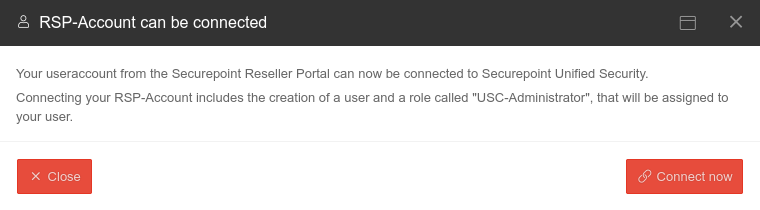
- The license must be clearly assignable to a UTM
- The UTM must have access via https to the Unified Security infrastructure

(Exception: The functions Websession and Security Scan)
No connection is established from outside to the UTM
The UTM logs itself into the Unified Security Portal and retrieves configuration changes and commands.
The settings in the portal are therefore not executed in real time, but with a small delay.
Preparations
Enabling the control via the Unified Security Console

After updating to version ≥ 12.2, the UTM can be controlled via the Unified Security Console in the Securepoint Unified Security Portal.
This function must first be enabled in the UTM itself in the new menu .
The UTM reports to the license server after the update. Here, the availability of the service is indicated and the menu is activated.
The process can be shortened by executing the command system restrictions update on the CLI after a few minutes of runtime (the UTM must have had the opportunity to report to the license server!).
| Caption | Value | Description |  |
|---|---|---|---|
| Privacy Policy: | Yes | The privacy policy must be accepted | |
| Activated: | Yes | This activates the Unified Security Console - and thus the display, configuration and access via the Securepoint Unified Security portal. | |
| Authentication method: notempty New as of v12.5 |
Authentication method for a web session | ||
| PIN: notempty New as of v12.5 |
•••••••• | As authentication for a web session, a 6-digit PIN can be selected instead of the login mask with access data.
| |
| Displays the Websession PIN | |||
| Creates a new PIN | |||
| The entered PIN is incorrect | After 5 incorrect entries in a row, access is blocked. The block is only lifted again after correct login directly at the admin interface. | ||
notempty Actions that can only be executed with a PIN:
New as of v12.5.2
| |||
USC in the portal
Note on Two-Factor Authentication

If two-factor authentication is ‘’‘not activated’‘’ in your user account, login to the USP is ‘’‘blocked’‘’ until two-factor authentication is activated.
Activation of two-factor authentication
The activation of two-factor authentication depends on the type of user account:
- If the user account is linked to the reseller portal and the RSP label is visible on the user account, two-factor authentication is activated via the Resellerportal
- The wiki article Reseller Portal User Management describes the activation process of the two-factor authentication TOTP
- If the user account only exists in the portal, it is activated via User options reset password
- A redirection to the necessary 2FA activation takes place via the button Enable 2FA in the information dialog

- The user receives the following e-mail
- Click on the link here


Login to the portal
Sign up with a reseller account
| ||
Using the Login button, you can log in to the Unified Security Portal USP with a reseller portal account.
|
 | |
| If the registered RSP account does not yet exist as a user in the USP, a dialog window opens in which you can add the RSP user as a user in the USP.
notempty
For RSP users with the roles Reseller and End customer notempty : 2.10
role USC Administrator
| ||
Log in with Securepoint Unified Security account | ||
| Only a few steps are necessary for end customers to log into the portal: | ||
| ||
| can be found as part of the URL behind the word tenant. https://portal.securepoint.cloud/…-tenant-123456.sms-… → 123456.sms | ||
| Password forgotten? | This link opens a dialog that allows you to reset the password. A password reset email will be sent to the user. | |
No information about other customers of the reseller can be viewed. | ||
Two-factor authentication | ||
| After successfully entering the login data, an input dialog for the TOTP of the two-factor authentication appears. Once the TOTP has been entered correctly, the login to the portal takes place automatically. |
 Dialog for entering the TOTP
| |

Call USC

The Unified Security Console is accessed via the Securepoint Unified Security Portal at https://portal.securepoint.cloud
Clicking on the device tile opens the device details.
Securepoint recommends assigning a unique name according to a clear structure.
Status Overview
Show status in tile overview:
| Status | Description |
|---|---|
| Connected | The UTM can reach the USC portal |
| Disconnected | The portal does not receive a message from the UTM |
| USC active | Is active if the Unified Security Console service is enabled on the UTM in the menu. |
| USR active | Unified Security Report is configured and is sent out |
| Update available | There is an update on the UTM that can be installed |
| Update highly recommended | There is a security update that should be installed immediately! |
Detail display

The detail display provides an overview of the most important states and messages for the UTM:
- Hardware and software of the UTM
- Messages from the Unified Security Report (if this option has been booked in the Reseller Portal)
- An overview with information about the hardware status:
- Memory usage
- CPU utilization
- Hard disk space used
- Details on upgrade / rollback options
- Display of the device location on a map (manual collection, no tracking)
- License information
- Information from the reseller portal about the company assigned to the license
Operations Operations UTM Upgrade | |||||||||||||||
| Action | Description | 
The update is now complete notempty new in wiki
notempty new in wiki | |||||||||||||
|---|---|---|---|---|---|---|---|---|---|---|---|---|---|---|---|
| Before an update or rollback is possible, the privacy policy must be accepted | |||||||||||||||
| The new version is first activated in the test run If this is not successful, the old version can be reactivated or a restart of the device can be triggered. | |||||||||||||||
| The new version is also used during a restart | |||||||||||||||
| Performs a rollback to the previously installed version | |||||||||||||||
| UTM System | |||||||||||||||
| PIN recommended |
Performs a restart of the UTM | ||||||||||||||
| PIN recommended |
Shuts down the UTM | ||||||||||||||
| PIN recommended |
Restores the factory settings | ||||||||||||||
Websession Websession | |||||||||||||||
| Start new websession | Opens the dialog to start the administrative web interface of the UTM |  | |||||||||||||
Websession with PINnotempty The connection is established via the interface on which the default route of the UTM is set up.
Websession with PIN (UTM from v12.5.1) | |||||||||||||||
| admin | If there is no user with the name admin, a user with admin rights can be selected here with whom the Websession connection is to be started. |  Websession with PIN (UTM as of v12.5.1)
| |||||||||||||
| _ _ _ _ _ _ | Websession PIN (Configured on the UTM in the menu in the Unified Security Console section After entering the PIN, the Websession can be started directly using ↵ Enter. | ||||||||||||||
notempty Displays the Websession PIN
New as of: 1.27 | |||||||||||||||
| Remember PIN for the current session notempty New as of 1.30 |
In this dialogue window it is possible to remember the PIN for this session. If this is activated , the PIN is automatically entered in other dialogues and the slider is no longer displayed. If the PIN is entered incorrectly, it will not be saved. | ||||||||||||||
| The entered PIN is incorrect | After 5 incorrect entries in a row, access is blocked. The block is only lifted again after correct login directly at the admin interface. | ||||||||||||||
| Start new websession | Opens the admin interface of the UTM in a new tab of the used browser | ||||||||||||||
Websession with login screennotempty
Websession with login screen (UTM from v12.5.1) | |||||||||||||||
| The connection is established via the interface on which the default route of the UTM is set up. |  Websession with login screen (as of UTM v12.5.1)
| ||||||||||||||
| As the Websession PIN is deactivated, no automatic login can take place. Access data (user name and password) are required. | |||||||||||||||
| Start new websession | Opens the admin interface of the UTM in a new tab of the used browser | ||||||||||||||
Websession with UTM up to v12.5.0notempty
An update to the latest version is recommended
| |||||||||||||||
Cloud backup Cloud backup | |||||||||||||||
Indication of the following values:
|
 | ||||||||||||||
| Download | Downloads the backup locally | ||||||||||||||
| Restore PIN recommended |
Restores the selected configuration. In the configuration management in the admin interface of the UTM, this can then be set as the active or start configuration. | ||||||||||||||
| Delete | Deletes the configuration backup | ||||||||||||||
| Operations | |||||||||||||||
| Opens a dialog for creating a new password | |||||||||||||||
| Creates a configuration backup | |||||||||||||||
Applications Applications Shows the status of the applications on the UTM with possible actions. The chart can be sorted by application name or status by clicking on the respective column. | |||||||||||||||
| Status DOWN | The application is not active |  | |||||||||||||
| Status UP | The application is active | ||||||||||||||
| Status N/A | The application is not available on this UTM | ||||||||||||||
| Start | Starts the application | ||||||||||||||
| Restart | Stops the application and performs a restart | ||||||||||||||
| Stop | Stops the application | ||||||||||||||
Status Status | |||||||||||||||
Shows utilization and consumption in the course of time for
|
 | ||||||||||||||
Operations log Operations log | |||||||||||||||
| Log of the communication between UTM and the Unified Security infrastructure |
 | ||||||||||||||
Security Scan Security Scan | |||||||||||||||
| Start new scan | Starts the port scan dialog |   | |||||||||||||
| IP address | 192.0.2.192 Public IP address to be scanned. If multiple interfaces with public IP addresses that can be reached from outside are identified, a separate result can be displayed for each interface. | ||||||||||||||
| Profile Securepoint TOP 100 (TCP) |
Clicking on the profile entry shows the list of ports that are scanned with applications and services that usually use that port. | ||||||||||||||
| Show details | Displays open ports and applications and services that usually use them. | ||||||||||||||
Inventory Inventory | |||||||||||||||
Here you can save information about the device and (for devices with SIM card) the contract:
|
 | ||||||||||||||


