


Instructions for video conferencing via Jitsi
New article: 06.2025
notempty
This article refers to a Beta version
-
Audio settings on the device
First of all, make sure that the audio output and input are set correctly on the computer. In most cases, a new device is displayed as soon as it is connected
Audio settings in Jitsi
- When moving the mouse in the video area, a menu bar appears at the bottom center of the screen
- Via the 3-dot menu ( More settings) the can be opened
- It must be ensured that the settings under contain the options
- and
- are set to default so that the audio devices set in the system are also used.
| 1. | 2. | 3. |
| Abb.1 | Abb.2 | Abb.3 |
| Abbildungen | ||

- Open further settings via the 3-point menu


- Select the menu item
- Select Standard under the option
- Select Standard under the option
Approvals
- When connecting to one of our Jitsi rooms for the first time, it may be necessary to confirm the use of audio devices in the browser. This can either be done each time or saved in the browser settings.
- In addition, the Port 10000 (WebRTC) on the firewall used in the network so that the video and screen transmission works. If this service is already enabled with an Any rule in the network, no further enabling is necessary.
| 1. | 2. | 3. |
| Abb.1 | Abb.2 | Abb.3 |
| Abbildungen | ||
UTMuser@firewall.name.fqdnFirewallServices 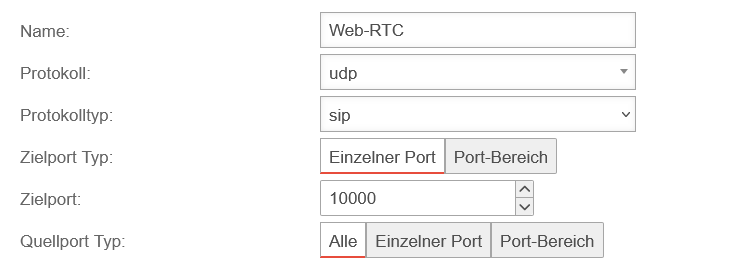

Create service with:
under button
- protocol: udp
- protocol type:
- destination port type:
- destination port: 10000
- source port type:
UTMuser@firewall.name.fqdnFirewallPacketfilter 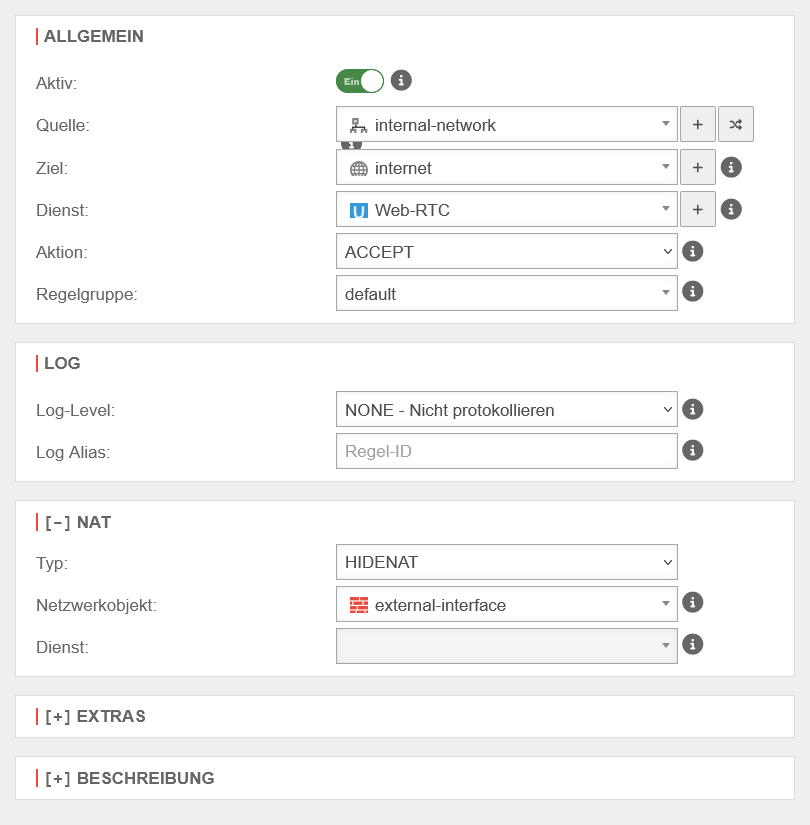

Create packet filter rule with:
under button
| General | {{{2}}} |
- Source:
 internal-network
 - destination:
 internet
 - service:
 Web-RTC previously created service


| [ - ] NAT | {{{2}}} |
- Type:
- Network object: firewall external-interface
Connection
Our support representative will provide a link to access one of our Jitsi conference rooms should this be necessary.