



Last adaptation to the version: 2.14 (02.2026)
notemptyThis article refers to a Beta version
Requirements
- Hardware and VM: At least version 12.2 is required, and a current license must also be available.
- A user account from the Reseller Portal is required.
In order to also be able to make changes, it is necessary to link the user access when logging into the Unified Security Portal for the first time.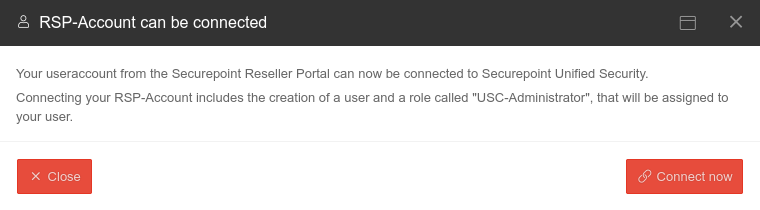
- The license must be clearly assignable to a UTM
- Cluster licenses must be reloaded from the reseller portal and assigned separately to the master or spare so that they are unique in the USC.
- The UTM must have access via https to the Unified Security infrastructure

(Exception: The function Security Scan)
No connection is established from outside to the UTM
The UTM logs itself into the Unified Security Portal and retrieves configuration changes and commands.
The settings in the portal are therefore not executed in real time, but with a small delay.
- The following wiki article describes licence migration from Terra Cloud to Securepoint
Preparations
Settings and authorizations of the UTM for the Unified Security Console
|
notemptyNote for cluster licenses In order for both cluster members to be assigned to each other, special new licenses must be registered on both devices. Menu Button To do this, two licenses must be downloaded from the reseller portal. If no license is marked as xynnnnn-SPARE in the reseller portal (matching licenses have an identical color marking on the left side of the table), please send an email to lizenzen@securepoint.de with customer name, customer number and the serial numbers of the devices or, in the case of VMs, with the license ID. Access by then Unified Security Console must first be enabled in the UTM itself in the menu . |
UTMuser@firewall.name.fqdn 
| ||
| Caption | Value | Description |  |
|---|---|---|---|
| Privacy Policy: | Yes | The privacy policy must be accepted | |
| Activated: | Yes | This activates the Unified Security Console - and thus the display, configuration and access via the Securepoint Unified Security portal. | |
| Authentication method: | Authentication method for a web session | ||
| PIN: | •••••••• | As authentication for a web session, a 6-digit PIN can be selected instead of the login mask with access data.
| |
| Displays the Websession PIN | |||
| Creates a new PIN | |||
| The entered PIN is incorrect | After 5 (default value value can be changed in the CLI with the extc variable SESSIONAUTH_MAXRETRY extc value set application ‘spcloudpuppet’ variable ‘SESSIONAUTH_MAXRETRY’ value ‘5’ The PIN can be unblocked again when logging in to the UTM itself. | ||
Actions that can only be executed with a PIN:
| |||
Detailed authorizations
| On the UTM under Authorizations, the authorizations of the Unified Security Console for the UTM can be activated On or deactivated Off in detail: | ||
| USC authorization | Description | [[Datei:]] |
|---|---|---|
| Status | Allow insight into system and memory utilization via the USC | |
| PIN-protected actions | Allow PIN-protected actions from the USC. These include:
| |
| One-time update | Allow configuration of one-off updates from the USC | |
| Websession | Allow opening a web session to access the UTM configuration interface from the USC | |
| Security Scan | ||
| UTM profiles | Allow the use of UTM profiles from the USC. Can be configured more precisely using the following authorizations: | |
| Open | This icon next to UTM-Profile displays the individual UTM profiles tabs, which can then be activated On or deactivated Off
| |
| Cloud-Backup | Allow configuration of cloud backups via the USC | |
| Administration | Allow aconfiguration of dministrative access via the USC Host name, IP addresses or networks from which the admin station interface of the UTM may be accessed. Configuration on the UTM in the menu Area Adminstration | |
| TIF (Cyber Defense Cloud) | ||
| Data protection | Allow configuration of the anonymization of UTM applications via the USC | |
| Fail2Ban | Allow configuration of Fail2Ban via the USC | |
| Cloud Shield | Allow configuration of Cloud Shield via the USC | |
Deletes the local Cloud Shield configuration The configuration is normally carried out via the USC to ensure synchronization and should only be carried out here in exceptional cases. If Cloud Shield is to be reactivated, it must be ensured that the authorization is set on the UTM side. A new transfer of the configuration to the UTM must then be triggered in the USC by changing the Cloud Shield or UTM profile. | ||
| VPN configuration (ASC) | Allow the use of VPN configuration profiles from the USC | |
| All VPN configurations for this UTM can be deleted using this button | ||
USC in the portal
Note on Two-Factor Authentication

notemptyUSP administrators are required to use two-factor authentication as an additional security measure.
If two-factor authentication is ‘’‘not activated’‘’ in your user account, login to the USP is ‘’‘blocked’‘’ until two-factor authentication is activated.
Activation of two-factor authentication
The activation of two-factor authentication depends on the type of user account:
- If the user account is linked to the reseller portal and the RSP label is visible on the user account, two-factor authentication is activated via the Resellerportal
- The wiki article Reseller Portal User Management describes the activation process of the two-factor authentication TOTP
- If the user account only exists in the portal, it is activated via User options reset password
- A redirection to the necessary 2FA activation takes place via the button Enable 2FA in the information dialog

- The user receives the following e-mail
- Click on the link here


Login to the portal
Sign up with a reseller account | ||
Using the Login button, you can log in to the Unified Security Portal USP with a reseller portal account.
|
 | |
| If the registered RSP account does not yet exist as a user in the USP, a dialog window opens in which you can add the RSP user as a user in the USP.
notemptyFor RSP users with the roles Reseller and End customer notempty: 2.10
role USC Administrator
| ||
Log in with Securepoint Unified Security account | ||
| Only a few steps are necessary for end customers to log into the portal: | ||
| ||
| can be found as part of the URL behind the word tenant. https://portal.securepoint.cloud/…-tenant-123456.sms-… → 123456.sms | ||
| Password forgotten? | This link opens a dialog that allows you to reset the password. A password reset email will be sent to the user. | |
No information about other customers of the reseller can be viewed. | ||
Two-factor authentication | ||
| After successfully entering the login data, an input dialog for the TOTP of the two-factor authentication appears. Once the TOTP has been entered correctly, the login to the portal takes place automatically. |
 | |

Call USC
| The Unified Security Console is accessed via the Securepoint Unified Security Portal at https://portal.securepoint.cloud Clicking on the device tile opens the device details. |
 | ||
Securepoint recommends assigning a unique name according to a clear structure. | |||
General Options | |||
| Filters the display | |||
| Name | |||
| Cluster / Name | |||
| Tags | |||
| Displays the search results alphabetically ascending/descending | |||
| / List view / Grid view | Switch between list and grid view | ||
| Refresh | Refresh the display | ||
Status Overview
Show status in tile overview: notemptynew as of: 2.11 If a feature is not active, it is displayed in grey.
| Icon | Hovertext | Description |
|---|---|---|
| Connected | The UTM can reach the USC portal | |
| Disconnected | The portal does not receive a message from the UTM | |
| USR active | Unified Security Report is configured and is sent out | |
| VPN | The UTM is located in the VPN configuration (Adaptive Secure Connect ASC) | |
| Cloud Shield | Cloud Shield is configured for the UTM | |
| a1b2 | Cluster a1b2 | Device belongs to a cluster license. The ID can be used to clearly identify cluster licenses that belong together. The hex number corresponds to the first 4 digits of the license_cluster_id, which can be found with the CLI command system info |
| Update available | There is an update on the UTM that can be installed
| |
| Update highly recommended! | There is a security update that should be installed immediately!
| |
Detail display

The detail display provides an overview of the most important states and messages for the UTM:
- Hardware and software of the UTM
- Messages from the Unified Security Report (if this option has been booked in the Reseller Portal)
- An overview with information about the hardware status:
- Memory usage
- CPU utilization
- Hard disk space used
- Details on upgrade / rollback options
- Display of the device location on a map (manual collection, no tracking)
- License information
- Information from the reseller portal about the company assigned to the license
Operations Operations | |||||||||||||||
| Device | |||||||||||||||
| Action | Description | 
| |||||||||||||
|---|---|---|---|---|---|---|---|---|---|---|---|---|---|---|---|
| Reboot PIN recommended | Performs a restart of the UTM | ||||||||||||||
| Shut down PIN recommended | Shuts down the UTM | ||||||||||||||
| Firmware | |||||||||||||||
| Restore factory settings PIN recommended | Restores the factory settings | ||||||||||||||
| Rollback to version 12.x.y PIN recommended notemptyNew as of UTM Version 14.1.0 |
Performs a rollback to the previously installed version. If USC is active, the PIN is requested. | ||||||||||||||
| Plan a one-time update | A one-time firmware update can be planned
Regular updates can be configured in the UTM profiles. This Wiki article describes this configuration | ||||||||||||||
| Remember PIN for the current session Available in Restart Shut down Restore factory settings |
In this dialogue window it is possible to remember the PIN for this session. If this is activated , the PIN is automatically entered in other dialogues and the slider is no longer displayed. If the PIN is entered incorrectly, it will not be saved. | ||||||||||||||
Cluster Cluster | |||||||||||||||
| Information on the cluster: Cluster-UUID, Status, Cluster-Version (Firmware version of the cluster partner), Synchronization status und License serial number Click on Go to other cluster UTM to go to the other cluster partner. In order for both cluster members to be assigned to each other, special new licenses must be registered on both devices. Menu Button To do this, two licenses must be downloaded from the reseller portal. If no license is marked as xynnnnn-SPARE in the reseller portal (matching licenses have an identical color marking on the left side of the table), please send an email to lizenzen@securepoint.de with customer name, customer number and the serial numbers of the devices or, in the case of VMs, with the license ID. |
 | ||||||||||||||
Websession Websession | |||||||||||||||
| Start new websession | Opens the dialog to start the administrative web interface of the UTM |  | |||||||||||||
Websession with PINnotemptyWebsession with PIN (UTM from v12.5.1) The connection is established via the interface on which the default route of the UTM is set up. | |||||||||||||||
| admin | If there is no user with the name admin, a user with admin rights can be selected here with whom the Websession connection is to be started. |  | |||||||||||||
| _ _ _ _ _ _ | Websession PIN (Configured on the UTM in the menu in the Unified Security Console section After entering the PIN, the Websession can be started directly using ↵ Enter. | ||||||||||||||
| notemptyNew as of: 1.27 Displays the Websession PIN | |||||||||||||||
| Remember PIN for the current session notemptyNew as of 1.30 | In this dialogue window it is possible to remember the PIN for this session. If this is activated , the PIN is automatically entered in other dialogues and the slider is no longer displayed. If the PIN is entered incorrectly, it will not be saved. | ||||||||||||||
| The entered PIN is incorrect | After 5 (default value value can be changed in the CLI with the extc variable SESSIONAUTH_MAXRETRY extc value set application ‘spcloudpuppet’ variable ‘SESSIONAUTH_MAXRETRY’ value ‘5’ The PIN can be unblocked again when logging in to the UTM itself. | ||||||||||||||
| Start new websession | Opens the admin interface of the UTM in a new tab of the used browser | ||||||||||||||
Websession with login screennotemptyWebsession with login screen (UTM from v12.5.1) | |||||||||||||||
| The connection is established via the interface on which the default route of the UTM is set up. | [[Datei: ]] | ||||||||||||||
| As the Websession PIN is deactivated, no automatic login can take place. Access data (user name and password) are required. | |||||||||||||||
| Start new websession | Opens the admin interface of the UTM in a new tab of the used browser | ||||||||||||||
Websession with UTM up to v12.5.0notemptyAn update to the latest version is recommended
| |||||||||||||||
Cloud backup Cloud backup | |||||||||||||||
Indication of the following values:
|
 | ||||||||||||||
| Download | Downloads the backup locally | ||||||||||||||
| Restore PIN recommended | Restores the selected configuration. In the configuration management in the admin interface of the UTM, this can then be set as the active or start configuration. | ||||||||||||||
| Delete | Deletes the configuration backup | ||||||||||||||
| Operations | |||||||||||||||
| Opens a dialog for creating a new password | |||||||||||||||
| Creates a configuration backup | |||||||||||||||
| Log of the communication between UTM and the Unified Security infrastructure | |||||||||||||||
| notemptyNew as of: 2.14 | |||||||||||||||
| Time | Shows the date and time at which the job is executed |  | |||||||||||||
| Job | Displays the job that is being executed The displayed job is described in more detail | ||||||||||||||
| Direction | Indicates the direction of communication
| ||||||||||||||
| Status | Displays the status of the executed job
| ||||||||||||||
| Info | Displays further information on the transmitted job. If an error has occurred, the type of error is described here. | ||||||||||||||
| Operations | Operations displayed here can be executed | ||||||||||||||
| notemptyNew as of: 2.14 | |||||||||||||||
| The status of the transmitted UTM profiles is also logged here | |||||||||||||||
| Time | Shows the date and time at which the job is executed |  | |||||||||||||
| Job | Displays the job that is being executed The displayed job is described in more detail | ||||||||||||||
| Direction | Indicates the direction of communication
| ||||||||||||||
| Status | Displays the status of the executed job
| ||||||||||||||
| Info | Displays further information on the transmitted job. If an error has occurred, the type of error is described here. | ||||||||||||||
| Operations | Operations displayed here can be executed | ||||||||||||||
 | |||||||||||||||
| Profile | Displays the profiles | ||||||||||||||
| Status | Displays the status of the executed job
| ||||||||||||||
| Operations | Operations displayed here can be executed | ||||||||||||||
Applications Applications | |||||||||||||||
| Shows the status of the applications on the UTM with possible actions. The chart can be sorted by application name or status by clicking on the respective column. | |||||||||||||||
| Status DOWN | The application is not active |  | |||||||||||||
| Status UP | The application is active | ||||||||||||||
| Status N/A | The application is not available on this UTM | ||||||||||||||
| Start | Starts the application | ||||||||||||||
| Restart | Stops the application and performs a restart | ||||||||||||||
| Stop | Stops the application | ||||||||||||||
Status Status | |||||||||||||||
Shows utilization and consumption in the course of time for
|
 | ||||||||||||||
Security Scan Security Scan | |||||||||||||||
| Start new scan | Starts the port scan dialog |   | |||||||||||||
| IP address | 192.0.2.192 Public IP address to be scanned. If multiple interfaces with public IP addresses that can be reached from outside are identified, a separate result can be displayed for each interface. | ||||||||||||||
| Profile Securepoint TOP 100 (TCP) |
Clicking on the profile entry shows the list of ports that are scanned with applications and services that usually use that port. | ||||||||||||||
| Show details | Displays open ports and applications and services that usually use them. | ||||||||||||||
Inventory Inventory | |||||||||||||||
Here you can save information about the device and (for devices with SIM card) the contract:
|
 | ||||||||||||||


Error message / Troubleshooting
| Error | Solution |
|---|---|
| UTM is not displayed in the USC | Check the steps in Requirements and Preparations ( UTMs with expired licenses will be removed after 40 days if there is no ASC configuration)
|