


Last adaptation to the version: 14.2.1 (09.2026)
- Beta For participants on the Beta Channel only:
- The Entra ID Application ID can now also be entered in Step 3 of the wizard
- The attributes for the Entra ID connection are now configurable via the UTM (v14.2.0)
- Note on certificates for the Redirect URI (v14.2.0)
- Authentication for SSL-VPN via Entra ID(14.1.2)
- Renaming of Azure AD to Entra ID (12.7)
- 06.2026
- Link path updated
- Added a note regarding additional required permissions in Entra 04.2026
- Note on implied rules for OIDC added 03.2026
- EntraID images corrected 03.2026
Introduction
AD/LDAP connectivity enables existing directory services such as Microsoft Active Directory® or other LDAProtocol-based systems to be used for authentication, group management, and attribute storage.
Centrally managed users from the directory can thus easily be used for authentication or use of services on the UTM.
This simplifies the administration of complex corporate networks and unifies user management.
Among other things, the Light Directory Access Protocol (LDAP) is used for the connection to the directory..
Using LDAP, information about users, groups and other objects can be read from the directory.
The standard protocol itself does not provide for encryption or authentication of the messages.
In ADV190023 (Microsoft Guidance for Enabling LDAP Channel Binding and LDAP Signing) it is pointed out and an adjustment of the security settings is given.
In the future, signing and encryption of LDAP traffic will be required (seal).
Alternatively, the entire connection can be secured with SSL.
Starting with version 11.8.10, not only the PDC, but all DCs are used for LDAP requests. Thus, authentication for users from the AD is available even if the PDC is not reachable.
Requirement
To use an AD / LDAP for authentication, users must be created there and organized in groups.
Create user groups in AD


The authorizations for the services contained in the UTM can be managed in groups. The users to be assigned to these groups must first be assigned to corresponding user groups in AD.
Należy zatem najpierw dodać grupę typu „Grupa zabezpieczeń” w AD, która tutaj otrzyma nazwę „ClientlessVPN”.
Add user in AD


The users to be enabled for Clientless VPN are then added to this group.
DNS configuration
Area Serwer DNS] pole Główny serwer nazw: musi być 127.0.0.1
- notemptyWpis w polu Pomocniczy serwer nazw: musi być pusty!
- W [https://wiki.securepoint.de/index.php?uselang=en&title=UTM/NET/Nameserver#Zonen
Integrate UTM into the domain
W menu konfigurowane jest uwierzytelnianie.
Establishing an AD connection
If there is no AD/LDAP authentication yet, the AD/LDAP authentication wizard opens automatically.
Otherwise the wizard can be started with the button .
Step 1: Directory type | |||
| Caption | Value | Description | UTMuser@firewall.name.fqdn Authentication AD/LDAP Authentication Step 1 Directory type Step 1
|
|---|---|---|---|
| Directory type: | notempty
In any case, the directory type »AD« should be selected if it is an Active Directory environment. | ||
Step 2: Options | |||
| IP Address or Hostname: | »192.168.145.1 | (Example address!) | Step 2 Options Step 2
|
| Domain: | ttt-point.local | Domainname | |
| Workgroup: | ttt-point | The NETBIOS name of the AD If this should differ from the base domain, the correct NETBIOS name must be entered here. | |
| Appliance Account: | sp-utml | The name by which the UTM is entered in the AD in the group Computers. A unique name that must not be assigned twice! When operating the UTM in a cluster, the name in the master and spare must be different. The name is not synchronized!
| |
Step 3: Nameserver |
Step 3 Nameserver Step 3
| ||
| If the AD server is not yet entered as the name server, this is done in this step: | |||
| IP address: | 192.168.145.1 | notempty Sample address! IP address of an AD server of the domain, if necessary additionally the port | |
| The AD server is thus added as a relay zone in the name server of the UTM. The entry can be found in the menu Area Zonen Up to version 14.1.x found under | |||
Step 4: Join | |||
| Administrator name: | Administrator | To join the domain, a user account with domain administrator permissions is required. | Step 4 Join Step 4
|
| Password: | •••••••• | Note for cluster operation hide Klicken für dauerhafte Anzeige When operating the UTM in a cluster, the password on the spare UTM must be entered separately under Area Join .
Except of the Appliance Account: (see step 2), all other information in the cluster will be synchronized. Complete with | |
Result of AD connection | |||
| Result in section Status :
| |||
| active: | On | AD/LDAP authentication is enabled. | UTMuser@firewall.name.fqdn Authentication 
|
| Connection Status: | For confirmation the display changes from grey to green. Update with | ||
Extended | |||
| AD attributes can be given certain authorizations. This allows you to configure who can view them. For example, they cannot be read by an LDAP search. These AD attributes are marked with the "confidential'" flag. | |||
To give an AD attribute these authorizations, the following steps are necessary:
| |||
notempty
As a result, the machine account of the UTM may no longer be able to read this attribute. The machine account then requires additional rights. | |||
| SSL: | Off | The connection to the Active Directory server can be established using SSL encryption. |  Extended settings
|
|
| |||
| Root certificate: | Certificate | A root certificate can be deposited. | |
| LDAP-Filter: | (|(sAMAccountType=268435456)(sAMAccountType=268435457)(sAMAccountType=805306368)) | sAMAccountType=Restricts authentication to members of the following groups: Further filters are possible
| |
| User-Attribute: | sAMAccountName | Attributes can be defined under which the AD administration stores the user information and which can then be queried by the UTM: | |
| Mail-Attribute: | »proxyAddresses | ||
Integracja funkcji OTP z Active Directory].
|
[[Datei: ]] Attribute Editor tab of the user properties in AD with example values for WireGuard  Names of the attributes used from the AD
| ||
| OTP-Attribute: | sPOTPSecret | ||
| L2TP-Attribute: | sPL2TPAddress | ||
| WireGuard-Attribute (IPv4): | sPWireguardIP4Address | The AD attribute of the IPv4 address of the WireGuard connection. The IPv4 address can be stored in any AD attribute of the user. If the IPv4 address is stored in extensionAttribute1, extensionAttribute1 is entered here. | |
| WireGuard-Attribute (IPv6): | sPWireguardIP6Address | The AD attribute of the IPv6 address of the WireGuard connection The IPv6 address can be stored in any AD attribute of the user. If the IPv6 address is stored in extensionAttribute2, extensionAttribute2 is entered here. | |
| WireGuard-Public-Key-Attribute: | sPWireguardPubkeyVal | The AD attribute of the public key of the WireGuard connection.
The public key can be stored in any AD attribute of the user. If the public key is stored in extensionAttribute3, extensionAttribute3 is entered here. | |
| SSL-VPN-Attribute (IPv4): | sPOVPNAddress | ||
| SSL-VPN-Attribute (IPv6): | sPOVPNIP6Address | ||
| SSL-Bump-Attribute: | sPSSLBumpMode | ||
| Cert-Attribute: | sPCertificate | ||
| Page Size: | 500 | In larger environments, LDAP requests may exceed the maximum number of records defined on the server side (1000 in AD). With Page Size you can set that the LDAP query is executed piecewise. A page size of 500 means 500 data records per query. A page size of 0 deactivates a step-by-step LDAP query. | |
Connect UTM with Entra ID
Prerequisites for using Entra ID with OpenID Connect (OIDC)
- In order to use Entra ID (former Azure AD), configured Azure Apps are required.
This article includes descriptions of third-party software and is based on the status at the time this page was created.
Changes to the user interface on the part of the manufacturer are possible at any time and must be taken into account accordingly in the implementation.
All information without warranty.
- Application (client) ID
- Directory (tenant) ID
- Secret client key
Login at Microsoft Entra Admin Center
- Create new app registration
- Enter the redirect URI (Type Web) from the UTM
- Either: Upload certificate
- Or: Create a secret client key
- If necessary, copy the client key
- Add Microsoft Graph API permission
- Assign delegated permissions offline_access, openid, and profile
- Add Application permissions User.Read.All and Group.Read.All (for reading users and groups)
- This completes the configuration in Microsoft Azure.
| 1. | 2. | 3. |
| Abb.1 | Abb.2 | Abb.3 |
| Abbildungen | ||
- Wprowadź wymaganą wartość w Kroku 3
- Wprowadź tymczasową wartość dla ID aplikacji
- Przejdź do Kroku 4
- Skopiuj tam URI przekierowania i wprowadź je w Centrum administracyjnym Entra
- Wróć do Kroku 3
- Po wykonaniu wszystkich kroków w Centrum administracyjnym Entra,
wprowadź poprawny ID aplikacji
For this, at least the Cloud Application Administrator permission is required in Entra
- Open ID Connect redirects to authentication with Entra. To do this, it is required to activate the rule for Redirect-Receiver in the Implicit Rules of the UTM in the section Entra ID (OpenID Connect) (On)
Reguły domyślne] obszar [https://wiki.securepoint.de/index.php?uselang=en&title=UTM/Firewall/Reguły_Domyślne#EntraID_(OpenID_Connect)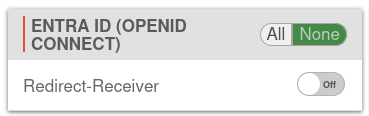


Establish Azure AD connection
Kreator uwierzytelniania AD/LDAP]
Step 1: Directory type
| Caption | Value | Description | UTMuser@firewall.name.fqdn Authentication AD/LDAP Authentication Step 1 Directory type Step 1
|
|---|---|---|---|
| Directory type: | Select Entra ID as directory type | ||
Step 2: Options | |||
| Directory-ID (Client-ID): | •••••••••••••••••••• | Directory-ID (Client-ID) from the app registration in Entra ID | Step 2 Options Step 2
|
| The entered value is displayed | |||
| Application-ID (Client-ID): | •••••••••••••••••••• | Application-ID (Client-ID) from the app registry in Entra ID. | |
| The entered value is displayed | |||
| Secret value: | •••••••••••••••••••• | Value of the secret client key from the Certificates & Secrets section of Entra ID. | |
| The entered value is displayed | |||
Step 3a: Entra ID (OpenID Connect) | |||
| Use OpenID Connect: | No | If you do not want to use OpenID Connect, then ... | Step 3 Entra ID (OpenID Connect) Step 3
|
| or | |||
Step 3b: Entra ID (OpenID Connect) active | |||
| Use OpenID Connect: | Yes | Enables authentication via Entra ID | Step 3 Entra ID (OpenID Connect)  Step 3 with OpenID
|
| Redirect Hostname: | Hostname under which the UTM must be accessible for the client. To use the global hostname, the field can be left blank. | ||
| App authentication type: | Here you can choose between secret key and certificate, which affects the input of the next field. | ||
| Client certificate: f previously: |
The certificate for authenticating the application with Entra. The certificate used must be imported under Certificates & Secrets in the application management in Entra. | ||
| Secret client key: f previously: |
The secret for authenticating the application with Entra. A valid secret client key created for the application must be used here (Application Management → Certificates & Secrets) | ||
| The entered value is displayed | |||
| Application-ID (Client-ID): notempty New as of v14.2.1 |
Application-ID (Client-ID) from the app registry in Entra ID. | ||
| The entered value is displayed | |||
| Redirect Port: | 40008 | Port of the UTM through which the authentication response is expected | |
| Redirect Path: | 753GDSJD729DFL1 | Random string as an additional path in the redirect URL. This prevents mass requests from scams that trigger a login attempt and then have to be rejected. | |
| Generates a new random 15-digit string of numbers and letters | |||
Step 4: Redirect URI | |||
| Redirect URI | Test | Display of the redirect URI Formed from the
notempty
A public certificate should be available for the stored redirect URI to avoid problems with iOS clients during redirection |
Step 4 Redirect URI Step 4
|
| Copies the redirect URI to the clipboard This URI is required as the redirect URI for the created OpenID Connect app in Entra ID. | |||
|
Result Entra ID Connection | |||
Status
| |||
| active: | Yes | Entra ID authentication is enabled | UTMuser@firewall.name.fqdn Authentication Datei:UTM v14.2.1 Authentifizierung EntraID Status-en.png |
| Connection Status: | To confirm, the display changes from gray to green. | ||
| This button is used to update the connection status | |||
| Directory type: | The set directory type | ||
| Options | |||
| Directory-ID (Client-ID): | •••••••••••••••••••• | Directory-ID (Client-ID) from the app registration in Entra ID | |
| The entered value is displayed | |||
| Application-ID (Client-ID): | •••••••••••••••••••• | Application-ID (Client-ID) from the app registry in Entra ID. | |
| The entered value is displayed | |||
| Secret value: | •••••••••••••••••••• | Value of the secret client key from the Certificates & Secrets section of Entra ID. | |
| The entered value is displayed | |||
| Extended notempty
New as of 14.2.0 | |||
| OTP-Attribute: | sPOTPSecret | One-time password for authentication | UTMuser@firewall.name.fqdn Authentication Datei:UTM v14.2.1 Entra ID Erweitert-en.png Extended tab
|
| L2TP-Attribute: | sPL2TPAddress | Defines settings for Layer 2 Tunneling Protocol (L2TP) | |
| WireGuard-Attribute (IPv4): | sPWireguardIP4Address | Defines the IPv4 address of the WireGuard connection | |
| WireGuard-Attribute (IPv6): | sPWireguardIP6Address | Defines the IPv6 address of the WireGuard connection | |
| WireGuard-Public-Key-Attribute: | sPWireguardPubkeyVal | The public key of the WireGuard connection | |
| SSL-VPN-Attribute (IPv4): | sPOVPNAddress | Defines the IPv4 address used for SSL-VPN connections | |
| SSL-VPN-Attribute (IPv6): | sPOVPNIP6Address | Defines the IPv6 address used for SSL-VPN connections | |
| SSL-Bump-Attribute: | sPSSLBumpMode | Contains settings for decrypting and re-encrypting HTTPS traffic | |
| Cert-Attribute: | sPCertificate | Certificate for authentication | |


AD Grant permissions to user groups
UTMuser@firewall.name.fqdn Authentication User
| Active | Permissions | Note |
|---|---|---|
| On | Userinterface | |
| On | Clientless VPN | Gewünschte Berechtigung |
Clientless VPN].

In the
Only groups that are not empty are listed.
Result
After saving, every user who is a member of the AD group ClientlessVPN can log on to the UTM with their Windows domains access data for using the Clientless VPN.
Verifying the AD connection with CLI
The lines below are the output of the UTM for this command.
Joining and leaving the domain
To validate whether the UTM has already joined the domain:
cli> system activedirectory testjoin
Join is OK
cli>
If this is not the case, the following output will take place
cli> system activedirectory testjoin
Not joined
cli>
In this case the domain can be joined with the following command
cli> system activedirectory join password Beispiel-Admin-Passwort
Password for Administrator@TTT-POINT.LOCAL:
Processing principals to add...
Enter Administrator's password:
Using short domain name -- TTT-POINT
Joined 'SP-UTML' to dns domain 'ttt-point.local'
cli>
The command to leave the domain is
cli> system activedirectory leave password Beispiel-Admin-Passwort
Enter Administrator's password:
Deleted account for 'SP-UTML' in realm 'TTT-POINT.LOCAL'
cli>
When entering or leaving the Active Directory, the administrator password must be entered. The password is not stored, but the AD membership is nevertheless rebootable.
Display AD groups
With the following command the groups can be listed in the Active Directory:
cli> system activedirectory lsgroups
member
------
Abgelehnte RODC-Kennwortreplikationsgruppe
Administratoren
Benutzer
Builtin
ClientlessVPN
Discovery Management
Domänen-Admins
Domänen-Benutzer
Domänen-Gäste
Exchange Servers
...
Users
Windows-Autorisierungszugriffsgruppe
cli>
Verification of users and group membership
The following command checks whether an AD user is assigned to an UTM group:
cli> user check name "m.meier" groups grp_ClientlessVPN
matched
cli>
If this is not the case, the output is
not a member
cli>
Command to display the group membership and permissions for an AD user:
cli> user get name m.meier
name   |groups           |permission
-------+-----------------+----------
m.meier|grp_ClientlessVPN|WEB_USER,VPN_CLIENTLESS
cli>
Domain controller behind site-to-site VPN
In some scenarios, the domain controller is located behind a site-to-site VPN tunnel.
If this is the case, a corresponding zone and rule must be configured.
Przekazywanie DNS dla IPSec-S2S] ‖ [https://wiki.securepoint.de/index.php?uselang=en&title=UTM/VPN/DNS_Relay#Przekazywanie_DNS_dla_tunelu_OpenVPN_Site-to-Site