


Simulation of a phishing attack
Last adaption: 11.2024
New:
notempty
This article refers to a Beta version
Requirements
notempty
The phishing simulation requires the ability to configure a whitelist on the mail server and all upstream spam filters!
Simulation
| To activation | Activates a scheduled phishing simulation |  |
| Plan new simulation | If necessary, deletes an existing simulation, creates a new simulation and starts the wizard with the Scheduling  | |
| Edit simulation | Opens an existing simulation for editing | |
Schedule | ||
| Start date 22.11.2021 |
Start of the campaign. From this, the following are automatically calculated:
|
 |
| Next | Saves the information and calls the next setup step | |
Industry package | ||
 |
Selection of an industry package. The content of the phishing emails as well as the senders used are tailored to the respective industries. |
 Offered industry packages
|
| Next | Saves the information and calls the next setup step | |
Email Templates | ||
| 12 emails can be selected to be sent to users |  | |
 |
Displays the link to the learning page for this phishing mail. The link can be copied to the clipboard with other elements (subject, sender, etc.) using the button. | |
| Sends a test mail. The recipient must be entered as a user in the master data. | ||
| Next | Saves the information and calls the next setup step | |
As part of the simulation, (simulated) phishing emails are sent to users.
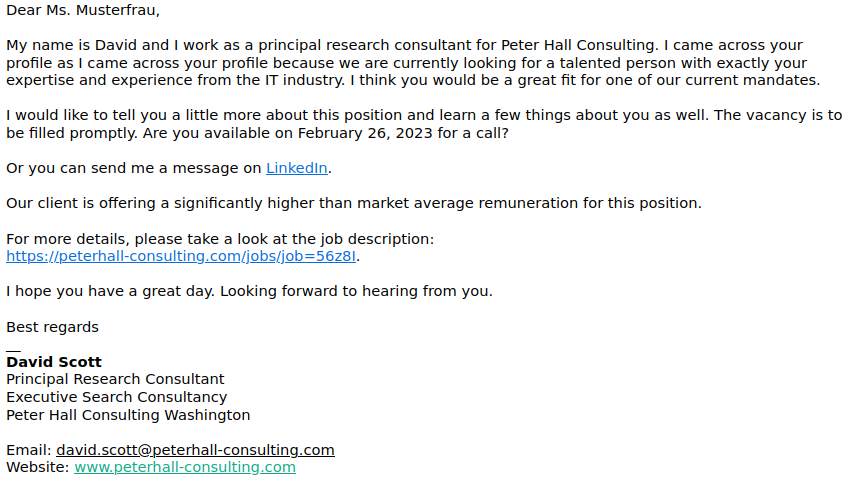
The following shows how to send such an email to check the content or to test if the delivery works. (For this, the next step Whitelisting must be observed!)
Requirements
In order to send a test mail, the following requirements must be met:
- The mail domain must be entered in the Choose tenant
 Start page
  Master data
 Contact data field Additional domains
 - The email address must be assigned to a user under Choose tenant Start page Master data User data
Send test mail
Simulation Email Templates
| This page will now display all available email templates from the previously selected industry package. |  | |
| Click to select the desired email template. | ||
| Opens the dialog for the test mail | ||
| This will open the window shown on the right, where the email address for the test mail can be entered. |  | |
| antivirus@anyideas.de | Enter email address | |
| Send | Sends the email template to the address | |
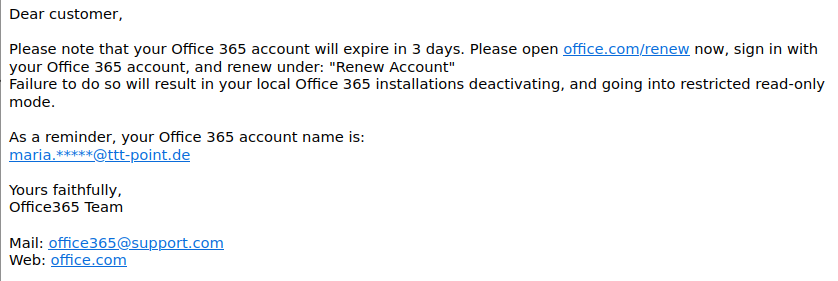
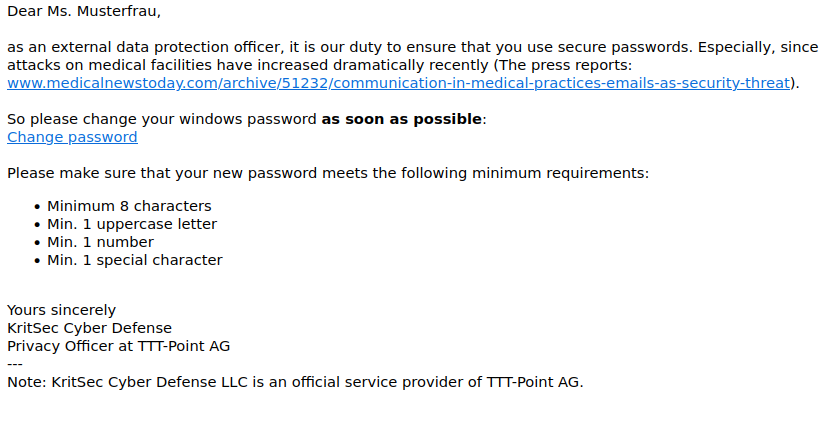
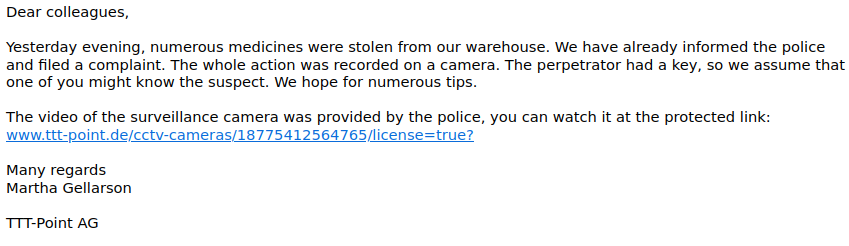
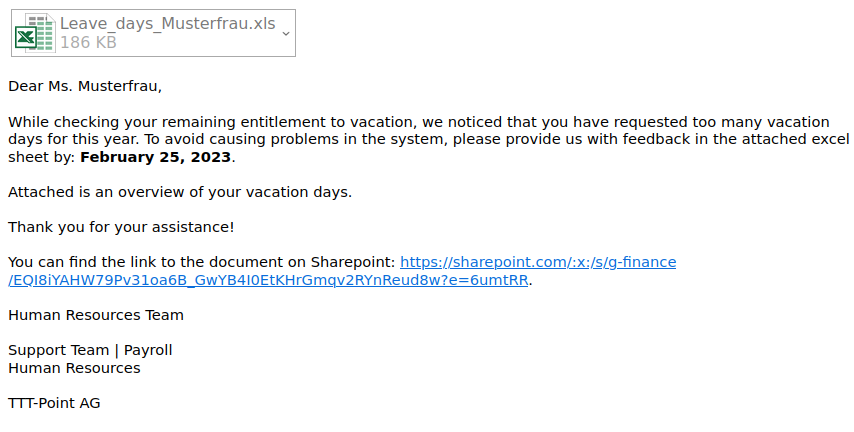
Samples

Fig.1
Industry: Medical practice, Difficulty: Easy

Fig.2
Industry: Medical practice, Difficulty: Medium

Fig.3
Industry: Medical practice, Difficulty: Hard

Fig.4
Industry: IT, Difficulty: Hard (with attachment)

Fig.5
Industry: IT, Difficulty: Hard
Whitelisting | ||
|
'
|
 | |
Summary | ||
| It should be checked here once again before activation whether all entries are correct. All settings can still be changed. |
 Summary of the phishing simulation
| |
| Complete | Completes the planning | |