


Last adaptation to the version: 14.2.0 (07.2026)
- Beta For participants on the Beta Channel only:
- "Master" has been renamed "Primary"
- Modifikation und Erweiterung der Schritt-für-Schritt-Anleitung
- Diverse textuelle Anpassungen umgesetzt
- Status section in the Management area
- Preliminary note if not synchronizing
Preliminary note
- Before the update is carried out on the cluster system, the functionality (see description "Test procedure") must be tested with the current version.
If the test is not successful, the update process may be disrupted. - In order to quickly distinguish between the primary UTM and the spare UTM, the header of the spare UTM is gray and the path of the device is titled (passive cluster UTM). UTMuser@spare.name.fqdn (passive cluster UTM) Network

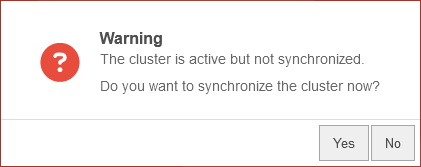
- notemptyIf the cluster is not synchronised, there is also a message in the header, a warning in the side menu and a message dialogue when the admin web interface is called up.New as of v14.0:


Updates in the cluster regarding UTM Update 14.1.3
Due to a change in password handling for clusters, the primary and spare UTMs may switch to active mode at the same time.
This behaviour occurs only once when updating from UTM version 14.0.12 or earlier to version 14.1.3 (or later).
To avoid this situation, we recommend the following procedure:
- Enable maintenance mode on the spare UTM
- Update the primary UTM to version 14.1.3
- Update the spare UTM to version 14.1.3
Please note that this will result in a brief interruption to network traffic until the primary UTM is back online
Settings in the tab Management
StatusStatus | ||||
| Caption | Value | Action | Description | UTMuser@firewall.name.fqdn Network  Management tab
|
|---|---|---|---|---|
| Cluster status: | The status of the cluster, if green the current UTM is active, if yellow it is ready as a backup but not active. Clicking on the button updates the information. | |||
| Synchronization status: | Shows whether the configurations of the UTMs are synchronized; if not, this can be changed using the button. | |||
FirmwareFirmware | ||||
| Installed firmware of the remote terminal: | 12.6.1 | Displays the used firmware version of the cluster partner. Clicking the button updates the information. | ||
Installed version: 12.6.1 Available version: 12.6.1.1 (Newer version) Available version: 12.6.0 (Older version) Hovering over the version information displays information about the versions available in each case. | ||||
| Locally installed firmware: | 12.6.1 | Displays the locally installed version. Clicking the button transfers this firmware version to the remote terminal. | ||
| Locally available firmware: | - 12.6.1 |
Displays a locally available version if it is newer than the locally installed version. | ||
ConfigurationConfiguration | ||||
| Synchronize configuration: | Transfers the local configuration to the remote terminal notempty New as of v12.6.1:
|
 Synchronize configuration: Check interfaces
 Unmatched interfaces on the remote station | ||
| Reset configuration: | Resets the cluster configuration of the local UTM to factory defaults (Requires additional confirmation). | |||
Maintenance ModeMaintenance Mode | ||||
| Maintenance Mode: | Off | On Activates the maintenance mode
CLI commands for maintenance mode can be found in a separate Wiki article. | ||
Firmware updates in the cluster
Due to a change in password handling for clusters, the primary and spare UTMs may switch to active mode at the same time.
This behaviour occurs only once when updating from UTM version 14.0.12 or earlier to version 14.1.3 (or later).
To avoid this situation, we recommend the following procedure:
- Enable maintenance mode on the spare UTM
- Update the primary UTM to version 14.1.3
- Update the spare UTM to version 14.1.3
Please note that this will result in a brief interruption to network traffic until the primary UTM is back online
Update Spare
Step 1 Update Spare- An update version of the firmware must be available. If necessary download the latest firmware under with the button .
- The update should first be installed on the spare. The installation first on the spare allows e.g. a review of the settings and hardware compatibility
If the Spare does not have Internet access, the update version can be transferred from the Primary to the Spare under Area Management (see section Firmware). - Installation in menu button
Testing Spare
Step 2 Testing Spare- After the update has been installed on the spare, the web interface of the spare UTM is opened. Here select the option .
- Check if the update has been installed properly.
- If problems occur, the button can be used to roll back.
Update Primary
Step 3 Update Primary- Before the update is installed on the Primary, the maintenance mode should be activated here under Area Management (see above) should be activated
- Now the update can be installed on the primary UTM. During the installation of the update, the primary UTM is restarted in the meantime. Maintenance mode is not persistent. The primary becomes the active device again after the reboot.
Testing Primary
Step 4 Testing Primary- Once the UTM has been restarted, maintenance mode will also be exited if it was active. The spare will switch to backup mode and the primary to active mode.
- If problems occur, the button can be used to roll back.
- Finally, maintenance mode is disabled
Testing Spare Primary
Step 5 Finalisieren Spare Primary- Wenn alles tadellos funktioniert, dann finalisiert man auf beiden UTMs das Update im Menü button
Test of the cluster functionality
After the update has been installed on the UTMs, the cluster functionality should still be tested in the event of a failure of the HA interfaces to ensure that the cluster behaves properly in the event of a failure.
Simulation: Failure of the primary UTM
Test:
The primary UTM must be shut down properly via the interface.
Expected behavior:
The spare UTM takes over the function.
Simulation: Failure of an HA interface on the primary UTM
Synchronisation of the configuration
Test:
After the successful test, the synchronisation of the configuration between the primary and spare UTM must be tested.
Expected behavior:
The synchronisation of the configuration takes place without errors.